...

Practical playbooks for small business growth.

No fluff. Just what's working in web, SEO, and AI right now.

Een WordPress-website is geen “klaar-en-vergeten” project. Zonder structureel onderhoud worden sites traag, kwetsbaar voor hackers en onbetrouwbaar in Google. WordPress draait wereldwijd op ruim 40% van alle websites, wat het een geliefd doelwit maakt voor aanvallen. Dit artikel legt uit wat WordPress website onderhoud precies inhoudt, waarom het cruciaal is, wat je zelf kunt doen, en wanneer je het beter uitbesteedt.

Wat is WordPress website onderhoud?

WordPress website onderhoud is het structureel beheren en bijwerken van alle onderdelen van een WordPress-site zodat deze veilig, snel en foutloos blijft draaien. Het omvat het updaten van de WordPress-core, thema’s en plugins, het maken van back-ups, beveiligingscontroles, snelheidsoptimalisatie, databasebeheer en het monitoren van uptime.

Onderhoud verschilt van eenmalige webdesign- of ontwikkelwerkzaamheden: het is een doorlopend proces dat de site gezond houdt nadat deze live is gegaan.

De kernonderdelen in het kort

OnderdeelDoelFrequentie
Core-, thema- & plugin-updatesVeiligheid en compatibiliteitWekelijks
Back-upsHerstel na storing of hackDagelijks
BeveiligingsscansMalware en kwetsbaarheden opsporenWekelijks
SnelheidsoptimalisatieBetere Core Web VitalsMaandelijks
Database-optimalisatieSnellere laadtijdMaandelijks
Uptime-monitoringDowntime direct detecterenContinu
LinkcontroleGeen 404-foutenMaandelijks

Waarom is WordPress onderhoud belangrijk?

1. Beveiliging

Verouderde plugins en thema’s zijn de #1 oorzaak van gehackte WordPress-sites. Beveiligingslekken worden vrijwel altijd snel gepatcht in updates, maar alleen sites die die updates installeren zijn beschermd. Een gehackte site kan leiden tot datalekken, spam, malware-verspreiding en blacklisting door Google.

2. Snelheid en gebruikerservaring

Trage sites verliezen bezoekers. Onderzoek toont dat de bouncerate sterk stijgt naarmate de laadtijd toeneemt. Onderhoud houdt de database opgeschoond, caching actief en afbeeldingen geoptimaliseerd, zodat de site snel blijft.

3. SEO en Google-ranking

Google beoordeelt sites op Core Web Vitals (LCP, INP, CLS), beveiliging (HTTPS) en betrouwbaarheid. Een trage, onveilige of vaak offline site daalt in de zoekresultaten. Regelmatig onderhoud beschermt direct je organische posities.

4. Compatibiliteit

WordPress, PHP, thema’s en plugins evolueren continu. Zonder updates ontstaan conflicten die functies breken: contactformulieren die niet versturen, webshops die niet afrekenen, of een volledig witte “white screen of death”.

5. Betrouwbaarheid en uptime

Voor bedrijven betekent downtime direct omzetverlies en imagoschade. Uptime-monitoring waarschuwt je zodra de site eruit ligt, vaak nog vóór je klanten het merken.

Wat valt er onder WordPress onderhoud?

WordPress core-updates

De WordPress-kern krijgt regelmatig beveiligings- en functie-updates. Grote (major) updates vereisen extra zorg en testen; kleine (minor) beveiligingsupdates worden meestal automatisch toegepast. Test major-updates altijd eerst in een staging-omgeving.

Plugin- en thema-updates

Plugins zijn krachtig maar ook risicovol. Per update geldt:

  • Lees de changelog voordat je bijwerkt.
  • Maak eerst een back-up.
  • Test op staging bij kritieke plugins (WooCommerce, paginabuilders, formulieren).
  • Verwijder ongebruikte plugins — elke inactieve plugin blijft een potentieel lek.

Back-ups

Een betrouwbaar back-upschema is je vangnet. Best practices:

  • Volledige back-up van bestanden én database.
  • Off-site opslag (cloud, niet alleen op de server zelf).
  • Geautomatiseerd en periodiek getest op herstelbaarheid.
  • Bewaar meerdere versies (incrementeel of meerdere dagen terug).

Een back-up die je nooit hebt getest, is geen back-up.

Beveiliging

Effectief beveiligingsonderhoud bestaat uit:

  • Malware-scans om geïnfecteerde bestanden te detecteren.
  • Firewall (WAF) tegen kwaadaardig verkeer.
  • Brute-force-bescherming en limieten op inlogpogingen.
  • Sterke wachtwoorden en 2FA voor beheerders.
  • SSL-certificaat (HTTPS) dat geldig blijft.
  • Verwijderen van standaard ‘admin’-account en onnodige gebruikers.

Snelheid en Core Web Vitals

Performance-onderhoud richt zich op:

  • Caching (pagina- en objectcache).
  • Beeldoptimalisatie en moderne formaten zoals WebP/AVIF.
  • Lazy loading van afbeeldingen en video’s.
  • Minificatie van CSS en JavaScript.
  • CDN voor snelle wereldwijde levering.
  • PHP-versie up-to-date houden (nieuwere PHP is sneller én veiliger).

Database-optimalisatie

De WordPress-database loopt vol met revisies, spam-comments, transients en data van verwijderde plugins. Periodiek opschonen en optimaliseren versnelt zowel de back-end als de front-end.

Broken links en 404-controle

Dode links schaden de gebruikerservaring en SEO. Maandelijkse controle vangt verbroken interne links, foutieve redirects en verdwenen externe bronnen op.

Uptime-monitoring

Continue monitoring controleert elke paar minuten of de site bereikbaar is en stuurt een alert bij downtime, zodat je direct kunt ingrijpen.

WordPress onderhoud checklist

Dagelijks

  • Geautomatiseerde back-up uitgevoerd
  • Uptime-monitoring actief
  • Beveiligingsalerts gecontroleerd

Wekelijks

  • Plugin-, thema- en core-updates (na back-up)
  • Malware- en beveiligingsscan
  • Spam-comments verwijderen
  • Formulieren en kritieke functies testen

Maandelijks

  • Database optimaliseren
  • Broken links controleren
  • Snelheidstest (PageSpeed Insights / Core Web Vitals)
  • Ongebruikte plugins en thema’s verwijderen
  • Herstel van back-up testen

Per kwartaal

  • PHP-versie controleren en bijwerken
  • SEO-audit en posities controleren
  • Gebruikersrechten en accounts herzien
  • Hostingprestaties evalueren

WordPress onderhoud zelf doen of uitbesteden?

Zelf doen

Geschikt voor: kleine sites, blogs en wie technische affiniteit heeft.

Voordelen: lagere kosten, volledige controle.

Nadelen: tijdrovend, foutgevoelig, en updates die misgaan kunnen de site platleggen. Vereist kennis van staging, back-ups en troubleshooting.

Uitbesteden aan een onderhoudspartij

Geschikt voor: ondernemers, webshops en organisaties die afhankelijk zijn van hun site.

Voordelen: professionele monitoring, snelle hulp bij problemen, gegarandeerde back-ups en updates, en geen technische zorgen. Vaak inclusief support-uren.

Nadelen: maandelijkse kosten.

Voor de meeste bedrijven weegt de zekerheid van professioneel onderhoud ruimschoots op tegen de kosten — één gehackte of dagenlang offline site kost doorgaans veel meer dan een heel jaar onderhoud.

Wat kost WordPress website onderhoud?

De prijs van een onderhoudscontract hangt af van de grootte en complexiteit van de site, het aantal plugins, of het een webshop betreft, en het serviceniveau (responstijd, support-uren).

Globale richtprijzen:

PakketGeschikt voorIndicatie p/m
BasisEenvoudige sites/blogs€25 – €50
StandaardBedrijfswebsites€50 – €125
Premium / WebshopWooCommerce, grote sites€125 – €300+

Let bij het vergelijken niet alleen op prijs, maar ook op wat er écht in zit: frequentie van back-ups en updates, beveiliging, support-uren, responstijd en rapportage.

Veelgemaakte fouten bij WordPress onderhoud

  • Geen back-up vóór een update — herstellen wordt dan onmogelijk bij een crash.
  • Updates eindeloos uitstellen — vergroot het beveiligingsrisico exponentieel.
  • Te veel plugins installeren — elke plugin is een potentieel lek en vertraagt de site.
  • Verouderde PHP-versie draaien — onveilig en traag.
  • Geen staging-omgeving gebruiken bij grote updates.
  • Onderhoud volledig negeren tot er iets kapotgaat.

Conclusie

WordPress website onderhoud is geen luxe maar een noodzaak. Het beschermt je tegen hacks, houdt je site snel, ondersteunt je SEO en zorgt dat bezoekers altijd een werkende website vinden. Of je het nu zelf doet met een vaste checklist of uitbesteedt aan een specialist: structureel onderhoud is de goedkoopste verzekering tegen dure problemen.

Veelgestelde vragen (FAQ)

Hoe vaak moet ik mijn WordPress-site onderhouden?

Updates en beveiligingscontroles minimaal wekelijks, back-ups dagelijks, en een uitgebreidere check (snelheid, database, links) maandelijks.

Wat gebeurt er als ik mijn WordPress-site niet onderhoud?

De site wordt kwetsbaar voor hacks, trager, foutgevoelig en daalt in Google. Verouderde plugins zijn de meest voorkomende oorzaak van gehackte sites.

Kan ik WordPress-onderhoud automatiseren?

Deels. Back-ups, updates en monitoring kun je automatiseren, maar major-updates en beveiligingscontroles vragen menselijke controle om problemen te voorkomen.

Wat kost WordPress-onderhoud per maand?

Afhankelijk van de site doorgaans tussen €25 en €300+ per maand, waarbij webshops en grote sites aan de bovenkant zitten.

Is WordPress-onderhoud nodig als mijn site goed werkt?

Ja. Juist een goed werkende site moet je beschermen. Beveiligingslekken en compatibiliteitsproblemen ontstaan onzichtbaar op de achtergrond, niet pas wanneer er iets zichtbaar misgaat.

Wat is het verschil tussen hosting en onderhoud?

Hosting levert de server waarop je site draait; onderhoud houdt de site zelf (software, beveiliging, prestaties) gezond. Beide zijn nodig.

Every small business owner who searches for an affordable SEO agency runs into the same wall: one company quotes $99 a month, the next quotes $3,000, and both promise page-one rankings. So which number is real? The honest answer is that “affordable” and “cheap” are not the same thing — and confusing the two is the fastest way to waste a marketing budget. This guide breaks down what affordable SEO actually costs in 2026, what you should get for the money, the red flags that signal a scam, and how to choose an agency that delivers results without overcharging.

What “affordable SEO” actually means in 2026

Affordable SEO is not about finding the lowest possible price. It is about getting the strongest possible return for a budget that fits your business — the point where cost and results meet. A genuinely affordable agency charges a fair, transparent rate for real work that moves the needle. A “cheap” provider charges a price so low that meaningful work is mathematically impossible.

Here is the math that exposes the difference. According to a 2026 Ahrefs survey of 439 SEO professionals, the average SEO agency bills around $99 per hour. So when you see a “$99 per month, unlimited keywords” plan, do the arithmetic: that budget buys roughly one hour of professional work per month. No agency can research, optimize, create content, build links, and report on your site in a single hour. Something has to give — and what gives is quality, usually in the form of automated spam links and templated content that can actively harm your rankings.

Comparison showing the difference between cheap SEO and affordable SEO value for small businesses

Affordable SEO, by contrast, means right-sized scope. Instead of paying for an enterprise campaign you don’t need, you pay for a focused program — solid technical foundations, a handful of high-intent target keywords, quality content, and honest reporting — priced for a small business rather than a Fortune 500.

How much does an affordable SEO agency cost? (2026 pricing)

SEO is priced three main ways: monthly retainers, hourly consulting, and one-time projects. Industry survey data from 2026 gives us reliable benchmarks for each.

Pricing modelTypical 2026 rangeBest for
Monthly retainer$500–$2,500/mo (small business); ~$3,200/mo average across all agenciesOngoing growth — the most common model
Hourly consulting~$72/hr freelancer · ~$99/hr agency · ~$171/hr consultantOne-off advice, audits, or training
One-time projectSmall-site audit $100–$750; larger project work $2,500+A specific fix (audit, migration, recovery)
Chart of 2026 SEO pricing models showing monthly retainer, hourly, and project cost ranges

The averages hide a wide spread. Ahrefs found the most common monthly spend lands between $501 and $2,000, where roughly 43% of businesses sit. Separate agency data shows that about 64% of agencies charge under $1,000 a month for their entry packages. So the realistic “affordable” sweet spot for a US small business in 2026 is roughly $750 to $1,500 per month for local or small-scope campaigns — enough to fund real work, well below the enterprise tier, and far above the $99 danger zone.

One more thing worth knowing: more than half of agencies raised their prices in 2026, and zero-click searches now absorb a large share of Google queries. Competition for the clicks that remain is tighter, which means starting sooner generally costs less than waiting.

What you should actually get for an affordable budget

Price means nothing without scope. A $1,000 retainer at one agency and a $1,000 retainer at another can buy completely different things. Here is a realistic picture of what an affordable budget should include at each tier.

BudgetRealistic monthly scope
$500–$750/moLocal SEO basics: Google Business Profile optimization, a few target keywords, on-page fixes, citations, monthly report
$750–$1,500/moThe above plus ongoing content (1–2 quality pieces), technical SEO, internal linking, light link building, conversion tracking
$1,500–$2,500/moA fuller program: deeper content, stronger link acquisition, multi-location or competitive-niche work, CRO input, strategy calls

If a provider won’t tell you specifically what falls inside your retainer — how many content pieces, what kind of links, which deliverables — that opacity is itself a warning sign.

Affordable vs cheap: 7 red flags that signal wasted money

  • Guaranteed #1 rankings. No ethical agency can promise a specific position — Google itself says so. Guarantees signal either naivety or deception.
  • “$99/month, unlimited keywords.” Unlimited anything at a token price means automated, low-value work. Real SEO is finite and labor-intensive.
  • No audit, no customization. If they pitch a one-size-fits-all package without first looking at your site and competitors, you’re buying a template.
  • Secret or proprietary “methods.” Legitimate SEO is transparent. Vagueness usually hides spam tactics that risk a penalty.
  • Mass low-quality links. “Thousands of backlinks” is a liability, not an asset. Quality and relevance beat volume every time.
  • No reporting or KPIs. If you can’t see traffic, rankings, and conversions monthly, you can’t tell whether you’re paying for results or noise.
  • Long lock-in contracts with no exit. Confident agencies earn renewals with results, not by trapping you for 12 months.

Agency vs freelancer vs in-house vs DIY: which is most cost-effective?

Comparison of SEO agency, freelancer, in-house hire, and DIY options for small businesses
OptionRough costTrade-off
DIYTime + tools (~$100–$200/mo)Cheapest in dollars, expensive in hours and mistakes
Freelancer~$72/hr or small retainersAffordable and flexible, but capacity and breadth are limited
Boutique agency$500–$2,500/moBest value for most small businesses — a full skill set at a small-business price
In-house hire$60,000+/yr salaryFull control, but rarely justified until SEO is a core channel

For most small businesses, a small or boutique agency is the sweet spot: you get a strategist, a content writer, a technical specialist, and a link builder for a fraction of the cost of hiring even one of them full-time.

How to choose an affordable SEO agency

Once you’ve filtered out the red flags, use this checklist to compare the agencies that remain:

  • Relevant case studies. Have they produced measurable results for businesses similar to yours? Ask for specifics — traffic growth, ranking gains, leads.
  • Transparent pricing and scope. You should know exactly what you’re paying for before you sign.
  • Clear reporting. Monthly reports tied to business outcomes, not vanity metrics.
  • White-hat methods. They should describe their link-building and content approach openly.
  • A real team. Confirm the work is done in-house, not silently outsourced to the cheapest freelancer.
  • No long lock-in. Month-to-month or short terms signal confidence in their results.

Smart questions to ask on a discovery call: What will you do in the first 90 days? How do you build links? How and when do you report? What results have you delivered in my industry? What happens if I want to leave?

How to get the most SEO for a small budget

  • Start local. Local SEO is cheaper and faster to move than national competition, and it targets buyers near you.
  • Fix the foundation first. A fast, technically clean site (strong Core Web Vitals) lets every other effort work harder — and it’s often a one-time cost.
  • Prioritize high-intent keywords. A few terms that signal buying intent beat dozens of vanity keywords.
  • Compound with content. Consistent, genuinely useful content is the highest-ROI affordable tactic over time.
  • Be patient. SEO is a marathon. Spreading a budget across months beats blowing it in one sprint.

What realistic results and timelines look like

Affordable SEO is not slow SEO — but it is real SEO, and real SEO compounds. Expect early technical and local wins within the first one to three months, meaningful ranking and traffic movement around months three to six, and the strongest compounding returns from six months onward. Any agency promising overnight page-one results is selling the cheap version, not the affordable one.

Affordable SEO done right: the MIK Web Solutions approach

At MIK Web Solutions, affordable means transparent scope, honest reporting, and a foundation built for performance — not a $99 illusion. We focus on US small businesses, pair content and technical SEO with genuinely fast, Core Web Vitals-passing websites, and price programs to fit a small-business budget. The result is the kind of compounding organic growth that a token-price provider simply cannot deliver. If you want SEO that’s affordable and effective, that’s the line we walk.

Frequently asked questions

How much should a small business pay for SEO?

For most US small businesses in 2026, a productive affordable budget is roughly $750 to $1,500 per month for local or small-scope campaigns. Very small local programs can start around $500, while more competitive niches run $1,500 to $2,500. Budgets far below this rarely fund enough real work to produce results.

Is cheap SEO worth it?

Usually not. At the 2026 average agency rate of about $99 per hour, a $99-per-month plan buys roughly one hour of work, which forces automated, low-quality tactics that can damage your rankings. Affordable SEO with right-sized scope is worth it; rock-bottom “cheap” SEO often costs more to clean up than it ever delivers.

What’s the difference between affordable and cheap SEO?

Affordable SEO charges a fair, transparent price for real, right-sized work that fits a small-business budget. Cheap SEO charges a price so low that meaningful work is impossible, relying on spam links and templated content. One is an investment; the other is a liability.

How long does affordable SEO take to work?

Expect early technical and local wins in the first one to three months, noticeable ranking and traffic movement around months three to six, and the strongest compounding returns from six months onward. SEO is a marathon, and any promise of instant page-one results is a red flag.

Should I hire an SEO agency or a freelancer?

A freelancer can be affordable and flexible but is limited in capacity and breadth. A boutique agency gives a small business a full skill set — strategy, content, technical, and links — for far less than hiring in-house, which makes it the most cost-effective choice for most small businesses.

The bottom line

An affordable SEO agency is not the one with the lowest sticker price — it’s the one that delivers the most value for a budget that fits your business. Skip the $99 illusions, watch for the red flags, insist on transparent scope and reporting, and treat SEO as the compounding investment it is. Do that, and “affordable” and “effective” stop being a trade-off.

If your WordPress site loads a 2560-pixel hero image on a phone that only needs 400 pixels, you are shipping megabytes of wasted data on every visit — and Google notices. WordPress responsive images are the built-in system that stops this from happening, automatically serving each visitor the smallest image file that still looks sharp on their screen. Done right, they shrink page weight, lift your Largest Contentful Paint (LCP) score, and protect your search rankings. Done wrong — or left at WordPress defaults on a poorly built theme — they quietly drag down your Core Web Vitals.

This guide explains exactly how responsive images work in WordPress as of WordPress 7.0 (2026), what the srcset and sizes attributes actually do, and how newer features — lazy loading, fetchpriority, sizes="auto", and native WebP and AVIF — fit together. You will also learn how to check whether your theme is doing it correctly, how to fix the most common problems, and which plugins and code snippets give you full control.

What are responsive images (and why WordPress needs them)?

A responsive image is a single image that the browser can render at different file sizes depending on the device viewing it. Instead of one fixed file for everyone, the browser is handed a menu of options and picks the most efficient one for the screen’s width and pixel density.

This matters because screens vary enormously. A 4K desktop monitor, a Retina laptop, a mid-range Android phone, and a budget tablet all have different widths and different device pixel ratios (DPR). Serving a desktop-sized image to a phone wastes bandwidth, slows the page, and burns through mobile data plans. Since images are usually the heaviest assets on a web page, getting this wrong is one of the fastest ways to fail a Core Web Vitals assessment — and page experience is a confirmed Google ranking signal.

The good news: WordPress has handled the heavy lifting natively since version 4.4. The catch: the defaults are conservative, and many themes and page builders fail to refine them — which is where real performance is won or lost.

How WordPress generates responsive images automatically

Every time you upload an image to the Media Library, WordPress does not store just one file — it generates several resized copies at predefined dimensions. These intermediate sizes are the raw material for responsive delivery: they become the candidate images the browser later chooses between.

Diagram showing WordPress generating multiple image sizes from a single uploaded photo

The image sizes WordPress creates on upload

On a default installation, WordPress registers these core sizes:

Size nameDefault dimensionsTypical use
Thumbnail150 × 150 (hard cropped)Grids, related-post squares
MediumMax 300 × 300Inline content, sidebars
Medium Large768 wide (no UI control)The srcset workhorse
LargeMax 1024 × 1024Wide content images
1536 × 1536Retina of “large”2× / Retina screens
2048 × 2048Retina of “medium large”High-DPR displays
Full / ScaledOriginal (or capped at 2560)Largest fallback

So a single upload can produce six to eight files before your theme adds any custom sizes of its own. Theme and plugin developers frequently register additional sizes with add_image_size() for specific layouts (hero banners, card thumbnails, full-width covers), so it is common for one upload to spawn ten or more files on the server.

The 2560px “big image” threshold

Since WordPress 5.3, any image wider or taller than 2560 pixels is automatically downscaled to that threshold, and the resized version is treated as the “full” image (the original is kept with a -scaled suffix). This prevents enormous camera or stock photos from being served at native resolution. You can raise, lower, or remove this limit with the big_image_size_threshold filter if your design genuinely needs larger images.

srcset and sizes: the heart of responsive images

When WordPress outputs an image into your content, it doesn’t just write a single src. It adds two extra attributes — srcset and sizes — that together let the browser make an intelligent choice.

Annotated WordPress img tag showing the srcset and sizes attributes labeled and explained

srcset: the menu of candidates

The srcset attribute lists every available copy of the image alongside its true pixel width, written as a w descriptor. It is the browser’s menu of options:

srcset="photo-300x200.jpg 300w,
        photo-768x512.jpg 768w,
        photo-1024x683.jpg 1024w,
        photo-1536x1024.jpg 1536w,
        photo-2048x1365.jpg 2048w"

Each entry says, in effect, “here is a copy of this image, and it is this many pixels wide.” The browser now knows exactly what it can choose from.

sizes: how big the image will actually display

The srcset alone isn’t enough — the browser also needs to know how wide the image will be on screen before it has finished building the layout. That’s the job of the sizes attribute, which describes the image’s display width at different viewport widths using media conditions:

sizes="(max-width: 768px) 100vw, 768px"

This reads: “On viewports up to 768px wide, the image fills 100% of the viewport width; on anything wider, it displays at a fixed 768px.” Combine the two attributes and the browser multiplies the chosen slot width by the device’s pixel ratio, then selects the smallest srcset candidate that still satisfies that requirement. A Retina phone needing a 400px-wide image at 2× DPR will reach for the 768w file; a standard desktop showing the same image at 768px will also pick 768w — but a low-end phone might happily use the 300w version.

Browser selecting the correct WordPress image size from srcset based on screen width and pixel density

The crucial takeaway: WordPress generates the srcset reliably, but the default sizes value is simplistic. The default essentially assumes the image is either full-width or fixed at its registered width. On a complex responsive layout — a two-column post, a card grid, a sidebar widget — that assumption is often wrong, and the browser ends up downloading a larger file than the design actually displays. Refining sizes is where most real-world responsive-image gains are found.

Beyond srcset: modern WordPress image features you should know

Responsive sizing is only one half of modern image performance. Several features added since the srcset era work alongside it — and many older guides (and older themes) ignore them entirely.

Native lazy loading (WordPress 5.5+)

Since WordPress 5.5, images below the fold automatically receive loading="lazy", telling the browser to defer downloading them until the visitor scrolls near them. This reduces the initial page weight dramatically. WordPress is smart enough to not lazy-load the first large image on the page, because that image is usually the one that needs to load fastest.

fetchpriority and your LCP image (WordPress 6.3+)

Your Largest Contentful Paint element is frequently a big above-the-fold image — a hero or featured image. Since WordPress 6.3, the core automatically adds fetchpriority="high" to the first sufficiently large, non-lazy-loaded image, instructing the browser to fetch it before lower-priority resources. This directly improves LCP, one of the three Core Web Vitals. The one rule to remember: never combine fetchpriority="high" with loading="lazy" on the same image — they work against each other.

Core Web Vitals LCP improvement from prioritizing the hero image on a WordPress page

sizes=”auto” for lazy-loaded images (WordPress 6.7+)

This is the feature most 2021-era guides completely miss. WordPress 6.7 added sizes="auto" to lazy-loaded images. Because a lazy-loaded image doesn’t download until the layout is already known, the browser can use the image’s actual rendered width to pick the perfect srcset candidate — making the sizes value 100% accurate and eliminating wasted bytes from an imperfect manual sizes attribute. It applies only to images that already carry loading="lazy", so it stacks neatly on top of native lazy loading.

One caveat worth knowing: a small number of sites reported blurry images after upgrading to 6.7, almost always caused by theme CSS that sets images to a fixed or fit-content width that doesn’t match the rendered slot. If you hit this, the fix is in the theme CSS, not in disabling the feature.

WebP and AVIF: next-gen formats, natively (5.8 and 6.5)

Responsive sizing decides which dimensions to serve; image format decides how heavy each of those files is. WordPress has supported uploading and displaying WebP natively since version 5.8 (with thumbnail generation since 6.1), and AVIF since version 6.5. WebP typically cuts file size 25–35% versus JPEG; AVIF can go 30–50% smaller again, with better colour handling. As of 2026, both formats are supported by over 90% of global browser traffic.

File size comparison of the same image saved as JPEG, WebP, and AVIF formats

Native support means you can upload an .avif or .webp file and WordPress treats it like any other image, generating responsive sizes from it. To convert an existing JPEG/PNG library in bulk and serve next-gen formats with automatic fallbacks for older browsers, you still want a dedicated plugin (covered below). Note that AVIF requires your host to run PHP 8.1+ with GD or Imagick compiled for AVIF — most modern managed hosts already qualify.

srcset vs the <picture> element: resolution switching vs art direction

WordPress’s srcset system handles resolution switching — the same image at different sizes. It does not handle art direction — showing a genuinely different crop or composition on mobile versus desktop (for example, a tight portrait crop on phones and a wide landscape on desktops).

Comparison of srcset resolution switching versus the picture element for art direction in WordPress

For art direction, the HTML <picture> element is the right tool. It lets you define multiple <source> elements with their own media queries and image files, plus a fallback <img>. The same element is also used to serve AVIF with a WebP and JPEG fallback when you want explicit format control. WordPress core doesn’t output <picture> for content images by default, so this is handled either with custom block markup, a theme template, or an optimization plugin that rewrites your images into <picture> tags.

How to check if your WordPress theme serves responsive images

You don’t need any tools to audit this — just your browser. Here’s the 30-second check:

  1. Open a post or page on your site in Chrome (or any browser).
  2. Right-click an in-content image and choose Inspect.
  3. Look at the <img> tag in the Elements panel. You should see both srcset and sizes attributes.
  4. Hover over the src value — the browser shows the currentSrc, i.e. the exact file it actually loaded. Compare its width to the displayed size.
Chrome DevTools inspecting a WordPress image to confirm srcset and sizes attributes are present

If there is no srcset at all, your theme or page builder is stripping it or predates WordPress 4.4 — that’s a red flag. If srcset is present but the browser is loading a 2048px file to display a 400px image, your sizes attribute is mis-tuned. Both are fixable.

Common WordPress responsive image problems (and how to fix them)

“Properly size images” warning in PageSpeed Insights

This is the classic symptom of an inaccurate sizes attribute: the browser downloads a larger candidate than the layout needs. Fixes, in order of effort: ensure you’re on WordPress 6.7+ so lazy-loaded images benefit from sizes="auto"; choose the image size in the editor that matches its displayed width; or refine the sizes attribute with the wp_calculate_image_sizes filter (below).

“Serve images in next-gen formats” warning

Your images are still JPEG or PNG. Install a conversion plugin (ShortPixel, Imagify, Converter for Media, or EWWW) to generate and serve WebP or AVIF versions with automatic fallbacks.

Full-size image loading on mobile

Usually the sizes attribute is too generous, or a high-DPR phone is correctly requesting a 2× image that happens to be large. Confirm with DevTools, then refine sizes. Page builders are common culprits here — see below.

Layout shift (CLS) as images load

If images push content around as they appear, your <img> tags are missing width and height attributes. Modern browsers use those values to reserve the correct space and compute aspect-ratio automatically, preventing Cumulative Layout Shift. WordPress adds these by default; the problem is almost always a theme or builder that strips them. Pair this with CSS width: 100%; height: auto; to keep images fluid without losing the reserved space.

Missing srcset entirely

Caused by an outdated theme, a page builder that hard-codes <img> tags, or images embedded via background-CSS (which srcset can’t touch). Update the theme, switch to a builder that respects responsive markup, or use a plugin that adds the attributes retroactively.

How to customize responsive images (for developers)

If you build or maintain themes, three filters give you precise control. Add these to your theme’s functions.php or a small site-specific plugin.

Refine the sizes attribute

// Tell the browser this image never displays wider than 700px
add_filter( 'wp_calculate_image_sizes', function( $sizes, $size ) {
    return '(max-width: 700px) 100vw, 700px';
}, 10, 2 );

Remove or raise the srcset width limit

// Allow srcset candidates wider than the default 1600px cap
add_filter( 'max_srcset_image_width', function() {
    return 2560;
} );

Register a custom image size

// Add a tailored size so the browser has a better candidate to choose
add_action( 'after_setup_theme', function() {
    add_image_size( 'card-thumb', 600, 400, true );
} );

After registering a new size, run a “Regenerate Thumbnails” plugin so existing media gets the new dimensions — add_image_size() only affects images uploaded after it’s added.

Page builders and responsive images: Elementor, Divi, and Gutenberg

Native Gutenberg blocks output proper srcset and sizes and respect WordPress’s responsive system well. Page builders are more variable. Elementor outputs srcset but lets you pick the source image size per widget — choosing “Full” when you mean a 600px column is a frequent cause of oversized loads, so set the image size to match the actual display width. Divi and similar builders behave similarly. Whatever builder you use, run the DevTools check above on real pages: builders generate markup dynamically, so the only reliable audit is inspecting the live output.

Best plugins for responsive images and next-gen formats

  • ShortPixel Image Optimizer — bulk-converts your library to WebP and AVIF, serves them with fallbacks, keeps originals, and integrates with CDNs. Credit-based pricing scales well for agencies.
  • Imagify — friendly UI, strong compression, WebP/AVIF conversion, from the makers of WP Rocket.
  • EWWW Image Optimizer — optimizes locally or via its Easy IO CDN, which can resize and reformat on the fly.
  • Converter for Media — free, focused purely on converting and serving WebP/AVIF.
  • Image Prioritizer + Enhanced Responsive Images — official WordPress Performance Team plugins that fine-tune fetchpriority, lazy loading, and sizes="auto" using real visitor data.
  • Perfmatters — lets you target fetchpriority on any element and fine-tune lazy loading beyond the defaults.

For most sites, one good conversion-and-compression plugin plus current WordPress defaults covers 90% of the need. Reach for the Performance Team plugins or custom filters when you’re chasing the last few points on Core Web Vitals.

WordPress responsive images: best-practice checklist

  • Run WordPress 6.7 or later so lazy-loaded images get accurate sizes="auto".
  • Upload images at a sensible maximum width (around 2000–2560px) — let WordPress generate the smaller copies.
  • Choose the image size in the editor that matches its displayed width; don’t insert “Full” everywhere.
  • Serve WebP or AVIF via a conversion plugin.
  • Keep width and height on every image to prevent layout shift.
  • Let the hero/LCP image stay eager with fetchpriority="high"; never lazy-load it.
  • Audit real pages in DevTools — confirm the browser loads appropriately sized files.
  • Use <picture> only when you need a different crop on mobile (true art direction).

Frequently asked questions

Does WordPress handle responsive images automatically?

Yes. Since WordPress 4.4, the core automatically adds srcset and sizes attributes to images, and generates multiple sizes of each upload. The system works out of the box, but the default sizes value is conservative and benefits from refinement on complex layouts.

Why is my WordPress site loading large images on mobile?

Usually an inaccurate sizes attribute, an image inserted at “Full” size, or a high-DPR phone correctly requesting a 2× file. Inspect the image in DevTools to see what’s actually loading, then refine sizes or pick a smaller source size.

Should I use WebP or AVIF in WordPress?

AVIF generally produces smaller files at equal quality and is supported natively since WordPress 6.5, but it needs PHP 8.1+ with AVIF-capable image libraries. WebP is faster to encode and slightly more broadly supported. A good plugin can serve AVIF with a WebP/JPEG fallback, so you don’t have to choose.

Do responsive images improve SEO?

Indirectly but meaningfully. They reduce page weight and improve Largest Contentful Paint, a Core Web Vitals metric that feeds Google’s page-experience ranking signals. Faster pages also lower bounce rates and improve conversions.

Final thoughts

WordPress responsive images are powerful precisely because they’re mostly automatic — but “automatic” is not the same as “optimal.” The defaults give you a solid foundation; the wins come from refining the sizes attribute, serving next-gen formats, protecting your LCP image, and auditing what your theme or page builder actually ships. Get those right, and you’ll send every visitor the leanest possible image without sacrificing a pixel of quality.

If your Core Web Vitals are being dragged down by oversized images and you’d rather have it handled properly, MIK Web Solutions offers WordPress speed optimization and image-delivery tuning that turns those red PageSpeed scores green.

If you’re weighing WP Engine vs GoDaddy for your WordPress site, you’re really comparing two completely different products that happen to share the same shelf. WP Engine is premium managed WordPress hosting built for speed and stability. GoDaddy is mass-market shared and managed hosting built for affordability and one-stop convenience. The right choice depends less on which is “better” and more on what your site actually needs.

We manage WordPress sites for clients every week and have used both platforms in production. This guide breaks down the real differences — performance, pricing, support, security, and the small things that only show up after you’ve been on a host for six months — so you can pick the one that fits your traffic, budget, and risk tolerance.

The quick verdict: WP Engine vs GoDaddy at a glance

Short answer: Choose WP Engine if you run a revenue-generating site, an agency portfolio, or anything where downtime and slow load times cost you money. Choose GoDaddy if you’re launching your first WordPress site, running a small brochure site, or want hosting, domain, and email under one roof on a tight budget.

Factor WP Engine GoDaddy
Entry price From ~$25–$30/mo From ~$6.99–$7.79/mo
Hosting type Managed WordPress only Shared, managed WP, VPS, dedicated
Average page load (LCP) ~364–371 ms ~510–562 ms
Uptime guarantee 99.95–99.99% (SLA on top tiers) 99.9%
Free CDN Yes (Cloudflare-integrated) On mid/higher tiers only
Staging environments Yes, on every plan From the Deluxe plan up
Daily automated backups Yes, 40-day retention Weekly on Basic, daily from Deluxe
Support 24/7 chat + phone (top tiers) 24/7 chat + phone
Best for Agencies, ecommerce, high-traffic sites Beginners, small businesses, multi-product buyers
Quick-glance comparison of WP Engine vs GoDaddy WordPress hosting plans (May 2026 pricing).

WP Engine at a glance

WP Engine is a managed WordPress host — that’s all it does. The company runs its infrastructure on Google Cloud and AWS, and the entire stack (server config, caching, CDN, security rules) is tuned for one application: WordPress. You don’t get cPanel, you don’t get email hosting, and you can’t install a non-WordPress site. In exchange, you get a host that handles updates, daily backups, malware mitigation, and performance optimization without you ever opening a terminal.

Plans are organized around three variables: number of sites, monthly visitor allowance, and storage. Entry-level Startup runs around $25–$30/month for one site and 25,000 visits. Professional, Growth, and Scale step up to 3, 10, and 30 sites respectively, topping out around $241/month before custom Enterprise tiers. Overages are billed at roughly $2 per 1,000 extra visitors — something to plan for if your traffic spikes.

GoDaddy WordPress hosting at a glance

GoDaddy is the world’s largest domain registrar, and its hosting business reflects that one-stop-shop DNA. You can buy a domain, hosting, email, an SSL certificate, and a website builder in a single cart. WordPress hosting is just one product among many, and GoDaddy offers it across shared, managed WordPress, VPS, and dedicated tiers.

Managed WordPress plans start at about $6.99–$7.79/month on a three-year commitment, with renewal rates climbing to roughly $14.99–$24.99/month. The Basic plan supports one site with 10 GB of storage; the Ultimate plan supports up to three sites with 30 GB, a built-in CDN, daily backups, and WooCommerce. Most plans include a free domain for the first year and a free SSL certificate for the life of the plan.

WP Engine vs GoDaddy: side-by-side comparison

Here’s where the two hosts genuinely diverge — across the factors that determine whether your site loads in 1 second or 4, stays online during a sale, and survives a hack attempt.

1. Performance and speed

This is where WP Engine earns its premium. Independent tests using identical Astra-themed WordPress installs and image-heavy demo content show WP Engine averaging a 364 ms Largest Contentful Paint while GoDaddy averages 562 ms. Other studies using Pingdom recorded similar gaps — roughly 371 ms for WP Engine versus 510 ms for GoDaddy.

The difference comes from architecture. WP Engine runs a proprietary caching layer called EverCache built specifically around WordPress object and page caching, layered with a Cloudflare-backed CDN included on every plan. GoDaddy’s managed WordPress uses NVMe SSD storage and a CDN on its mid and higher tiers, which helps — but it’s a general-purpose stack adapted for WordPress, not built for it.

Page load test WP Engine GoDaddy
GTmetrix LCP (avg) 364 ms 562 ms
Pingdom load time (avg) 371 ms 510 ms
Caching technology EverCache (proprietary) NVMe SSD + optional CDN
CDN included All plans Mid & higher tiers
Independent speed test results comparing WP Engine vs GoDaddy on identical WordPress installs.

In practical terms, if your homepage is 2 MB with hero images, a slider, and a few plugins, WP Engine will typically deliver it in under a second on a clean install. GoDaddy will land closer to the 1.5–2 second range under the same conditions, with more variability under traffic spikes.

2. Uptime and reliability

Both hosts publish uptime guarantees, but only one of them backs it with a contractual SLA. GoDaddy advertises 99.9% uptime, which sounds great until you do the math — 0.1% downtime is about 8.7 hours per year. WP Engine targets 99.95% on standard plans and offers a 99.99% SLA on Core and Enterprise tiers, which translates to under an hour of downtime annually.

For a brochure site this rarely matters. For an ecommerce store doing $5,000/day, the difference between 8 hours and 1 hour of annual downtime is roughly $1,500 in lost revenue — already more than the price gap between the two hosts.

3. Pricing and value

On paper, GoDaddy is three to four times cheaper. The Basic plan sits at $7.79/month and the top Ultimate plan at $13.79/month with annual billing. WP Engine’s Startup begins around $25–$30/month and climbs from there. If your only criterion is sticker price, the comparison ends here.

Plan tier WP Engine GoDaddy
Entry Startup — $25–$30/mo (1 site, 25k visits) Basic — $7.79/mo (1 site, 10 GB)
Mid Professional — ~$55–$58/mo (3 sites, 75k visits) Deluxe — $10.19/mo (1 site, 20 GB, CDN)
Higher Growth — ~$115/mo (10 sites, 100k visits) Ultimate — $13.79/mo (3 sites, 30 GB, WooCommerce)
Top Scale — ~$241/mo (30 sites, 400k visits) VPS / Dedicated tiers from $8.99/mo+
Money-back guarantee 60 days 30 days
WP Engine vs GoDaddy WordPress hosting plans and pricing (annual billing, May 2026).

But total cost of ownership tells a different story. With WP Engine, daily backups, a CDN, free SSL, malware scanning, staging, and one-click site copies are bundled. With GoDaddy, several of those — daily backups, advanced security, CDN — only unlock on higher tiers, and renewal pricing roughly doubles after the introductory term. A GoDaddy site that genuinely needs daily backups and staging often ends up at $13–$25/month on renewal, narrowing the gap considerably.

4. WordPress-specific features

WP Engine’s entire product is WordPress, so every feature is designed around it. You get one-click staging on every plan, automatic WordPress core and plugin updates with visual regression testing on higher tiers, Smart Plugin Manager for safe updates, Local by WP Engine for local development, and Genesis Framework access. The platform also blocks plugins known to cause performance or security problems — useful if you’ve ever inherited a site bogged down by abandoned caching plugins.

GoDaddy includes pre-installed WordPress, automated core updates, and a WordPress plugin manager on higher tiers. Staging arrives at the Deluxe plan. WooCommerce is bundled with the Ultimate plan and dedicated WooCommerce tiers. It’s functional, but it’s a layer on top of general hosting, not a WordPress-first stack.

5. Security

WP Engine includes enterprise-grade security on every plan: a managed web application firewall, daily malware scanning, automatic patches for WordPress vulnerabilities, DDoS protection, and free SSL via Let’s Encrypt. If your site is hacked, WP Engine will fix it for free.

GoDaddy includes free SSL across plans, automated malware scans, and DDoS protection on higher tiers. Advanced features like a dedicated WAF and malware removal often come as paid add-ons under the Website Security product, which can run $6.99–$29.99/month on top of hosting.

6. Customer support

Both hosts offer 24/7 support, but the experience differs. WP Engine’s support team consists of WordPress specialists — every agent is trained on WordPress internals, common plugin conflicts, and the platform’s own caching behavior. Live chat is standard; phone support unlocks on the Professional plan and above.

GoDaddy operates a much larger support organization (3,500+ guides across 20+ countries) with 24/7 phone, chat, and email. The catch: because GoDaddy supports dozens of products, agents are generalists. You can get the answer to a billing question in 90 seconds; complex WordPress issues sometimes get escalated.

7. Ease of use

WP Engine’s User Portal is purpose-built for WordPress site management — site list, environments (production/staging/dev), backups, domains, and a one-click WordPress admin button. There’s no cPanel because there’s nothing to configure at the server level. For a developer, this is liberating; for someone who wants to add an email address or a non-WordPress site, it’s limiting.

GoDaddy uses its own dashboard with cPanel access on shared plans. You can manage hosting, domains, email, and DNS in one place. The interface is busier (and pushes upsells), but it’s familiar to anyone who has used hosting in the last 15 years.

8. Backups and recovery

WP Engine runs daily automated backups with 40-day retention plus on-demand backup points. Restores are one click from the dashboard. GoDaddy includes weekly backups on the Basic plan and daily backups from Deluxe up; one-click restore is included. For mission-critical sites, WP Engine’s 40-day window provides a meaningful safety margin over GoDaddy’s shorter default retention.

9. Staging and development environments

WP Engine gives every plan three environments — production, staging, and development — with one-click copy in either direction. GoDaddy includes staging from the Deluxe plan up, but it’s a single staging environment, not a three-tier workflow. For agencies and serious developers, WP Engine’s setup is the clear winner.

10. Scalability

WP Engine scales vertically inside its managed tiers; once you outgrow Scale, you move to Custom or Enterprise plans with dedicated resources and SLAs. GoDaddy scales by moving you up the product ladder — managed WordPress to VPS to dedicated — which usually means a migration rather than a simple upgrade.

WP Engine: pros and cons

Pros Cons
Industry-leading WordPress performance with EverCache and bundled CDN Premium pricing — entry plan is 3–4x GoDaddy’s
99.95–99.99% uptime with contractual SLA on higher tiers No email hosting (you’ll need Google Workspace or Microsoft 365)
Daily backups, staging, malware mitigation, and SSL included on every plan WordPress only — no other CMS or static sites
WordPress-expert support 24/7 Visitor overage fees if you exceed your plan’s monthly cap
Free migration plugin and automated site transfer A small number of plugins are banned for performance/security reasons
Excellent for agencies — 10 to 30 sites on a single account  
WP Engine WordPress hosting pros and cons summary.

GoDaddy: pros and cons

Pros Cons
Aggressive entry pricing — under $10/month with annual billing Slower average page load times than WP Engine
One vendor for domain, hosting, email, and SSL Renewal prices roughly double the introductory rate
Free domain for the first year on most managed WordPress plans Many security and performance features are paid add-ons
Familiar dashboard and cPanel access on shared plans Support agents are generalists, not WordPress specialists
24/7 phone support in 20+ countries Aggressive upsells inside the customer dashboard
Broad product range — easy to upgrade to VPS or dedicated later Staging only from the Deluxe plan up
GoDaddy WordPress hosting pros and cons summary.

Who should choose WP Engine?

WP Engine makes sense when downtime or sluggishness costs you real money. Pick it if you run:

  • An ecommerce store doing meaningful daily revenue, where a 2-second page load improvement converts to measurable sales
  • A lead-generation site for a service business where page experience affects ad quality scores and conversion rates
  • A high-traffic content site with 50,000+ monthly visitors where caching and CDN performance matter
  • An agency managing client WordPress sites and needing staging, multi-site management, and white-label tools
  • A membership or LMS site where uptime and authenticated-request performance are non-negotiable

Who should choose GoDaddy?

GoDaddy WordPress hosting is the right call when budget and convenience outweigh raw performance. Pick it if you’re launching:

  • A first WordPress site where you want hosting, domain, and email in one cart
  • A small business brochure site with modest traffic and no e-commerce
  • A personal blog or portfolio that doesn’t generate revenue
  • A client site on a fixed budget where the client wants familiar branding and phone support
  • A short-term project where you’ll need to spin up and tear down hosting quickly

Real-world scenarios

Scenario Traffic Best fit Why
Freelance copywriter’s portfolio ~2,000 visits/mo GoDaddy Basic Performance gap is invisible at this volume; $200/yr savings goes further on a domain and email.
Regional law firm running paid search ~15,000 visits/mo WP Engine Startup Better LCP lifts Google Ads Quality Score; the hosting upgrade pays for itself in the first month.
WooCommerce store doing $40k/mo ~50,000 visits/mo WP Engine Professional / Growth Visitor overages on Startup would push the bill higher than Professional anyway; extra headroom covers sale spikes.
WordPress agency managing 12 client sites Varies WP Engine Growth 10 sites included, multi-site dashboard, staging on every site, free migrations.
Which host fits which kind of WordPress site — real-world WP Engine vs GoDaddy scenarios.

Migrating between WP Engine and GoDaddy

From GoDaddy to WP Engine: WP Engine provides a free official migration plugin that handles the transfer in roughly 30 minutes for most sites. Higher-tier plans include white-glove migration handled by WP Engine engineers — useful for large or complex sites.

From WP Engine to GoDaddy: GoDaddy offers free WordPress migration through its support team, or you can do it manually with a plugin like Duplicator or All-in-One WP Migration. Plan on a few hours including DNS propagation.

In either direction, the technical part is straightforward; the time sink is verifying that plugins, transactional emails, and any custom code still work after the move.

Frequently asked questions

Is WP Engine better than GoDaddy for WordPress?

For pure WordPress performance, security, and developer experience, yes — WP Engine outperforms GoDaddy in independent speed tests and includes more managed features by default. For affordability, beginner-friendliness, and integrated domain plus email, GoDaddy is the better fit.

How much does WP Engine cost compared to GoDaddy?

WP Engine’s entry Startup plan starts at $25–$30/month. GoDaddy’s entry managed WordPress plan starts at $7.79/month with a three-year commitment, though renewal pricing is roughly $14.99/month. WP Engine is typically 3–4x more expensive at entry.

Can I migrate from GoDaddy to WP Engine for free?

Yes. WP Engine offers a free migration plugin that automates most of the transfer. Higher-tier plans (Growth and Scale) include managed migrations performed by WP Engine engineers at no extra cost.

Does WP Engine include email hosting?

No. WP Engine doesn’t offer email hosting — you’ll need a separate service like Google Workspace or Microsoft 365. GoDaddy includes email options in most plans and bundles email products in its cart.

Is GoDaddy good for WooCommerce?

GoDaddy’s Ultimate WordPress plan and its dedicated WooCommerce hosting tiers run small to medium stores adequately. For higher-traffic WooCommerce sites — say, 30,000+ visits/month or substantial cart volume — WP Engine or a dedicated WooCommerce host like Cloudways performs more reliably under load.

Does GoDaddy offer staging environments?

Yes, from the Deluxe plan upward. GoDaddy’s Basic plan doesn’t include staging. WP Engine includes staging on every plan, including the entry-level Startup.

What’s the difference in uptime guarantee?

GoDaddy guarantees 99.9% uptime. WP Engine targets 99.95% on standard plans and offers a contractual 99.99% SLA on Core and Enterprise plans. In practical terms, that’s the difference between roughly 8.7 hours and under 1 hour of downtime per year.

Final verdict: WP Engine vs GoDaddy

Both hosts are legitimate products that serve different audiences. WP Engine is the better technical choice for any WordPress site where performance, uptime, and managed features have business value. GoDaddy is the better practical choice for first-time site owners, small businesses, and anyone who values an all-in-one vendor over best-in-class WordPress hosting.

If your site makes money — directly through sales or indirectly through leads — the math almost always favors WP Engine. If your site is a digital business card or a side project, GoDaddy will get you online for less than the price of a coffee per week, and you can always migrate up when growth demands it.

The mistake most site owners make isn’t choosing the wrong host; it’s staying on the wrong host too long. If you’re outgrowing GoDaddy and feeling it in your Core Web Vitals or your support tickets, treat that as the signal to move. If you’re paying for WP Engine and using one-tenth of what it offers, downsizing is fine too.

Need help migrating your WordPress site between hosts, or auditing whether your current host is actually serving you? Get in touch with MIK Web Solutions — we handle WordPress migrations, performance audits, and hosting strategy for sites of every size.

If you have ever used Google News, Flipboard, Feedly, or Rotten Tomatoes, you have already interacted with a content aggregator site. In simple terms, a content aggregator site gathers information, articles, media, or updates from multiple sources and displays them in one convenient place for users to browse. That basic definition is widely consistent across industry explanations of content aggregation.

But there is a lot more to understand if you want to know whether a content aggregator site is useful for your business, brand, publication, or startup.

In this guide, you will learn:

  • what a content aggregator site is
  • how content aggregator websites work
  • the different types of aggregators
  • real-world examples
  • benefits and drawbacks
  • SEO considerations
  • how to build one the right way

What Is a Content Aggregator Site?

A content aggregator site is a website or platform that collects content from different publishers, creators, feeds, or platforms and organizes it into a single destination. The content may include news stories, blog posts, podcasts, videos, product reviews, social media posts, job listings, or industry updates.

The main goal of a content aggregator site is to save users time. Instead of visiting multiple websites individually, users can find relevant information in one place.

Simple definition

A content aggregator site is a platform that pulls content from multiple sources and presents it in a structured, user-friendly format.

How Does a Content Aggregator Site Work?

Most content aggregator sites work through one or more of these methods:

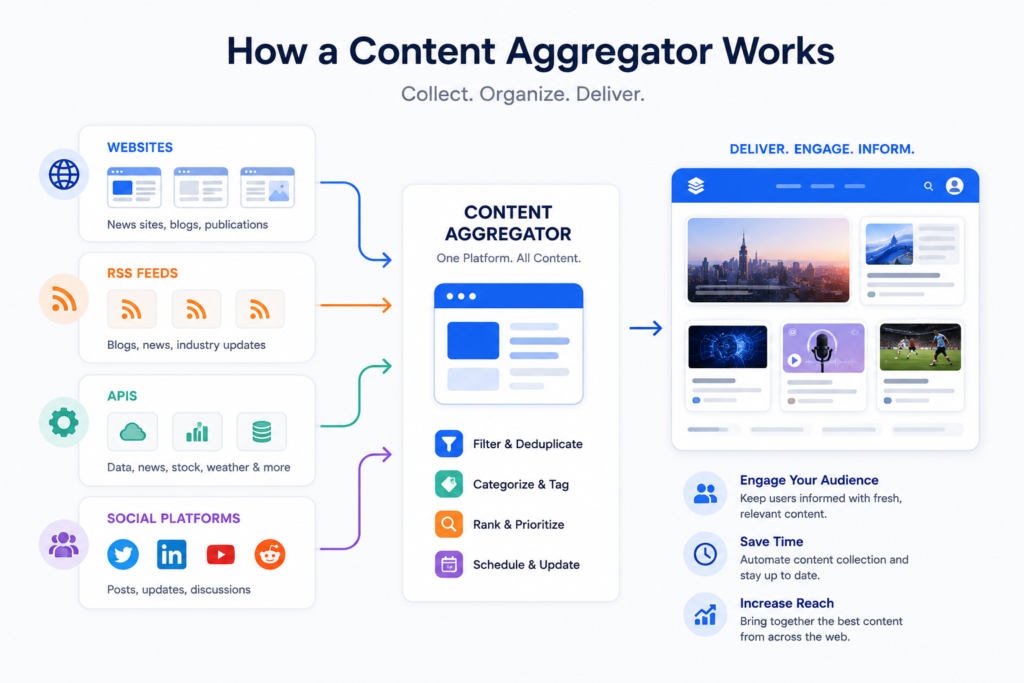
Diagram showing how a content aggregator site collects content from multiple online sources.

1. Content collection

The site gathers information from different sources using RSS feeds, APIs, direct submissions, scraping tools where permitted, editorial curation, or partnerships. RSS readers have long been a classic example of aggregation, as they compile updates from multiple sites into a single feed.

2. Content filtering

The platform sorts content by topic, category, keyword, popularity, freshness, location, or audience preference.

3. Content organization

The content is then displayed in a clean layout, often with headlines, summaries, thumbnails, ratings, or tags so users can browse efficiently.

4. Redirection or hosting

Some aggregator sites only show a headline and summary, then send users to the original source. Others host excerpts, reviews, or embedded media directly on their own platform.

5. Personalization

Many modern aggregators allow users to customize feeds based on interests, industries, creators, or keywords.

Types of Content Aggregator Sites

Not all aggregator websites work the same way. Here are the most common types.

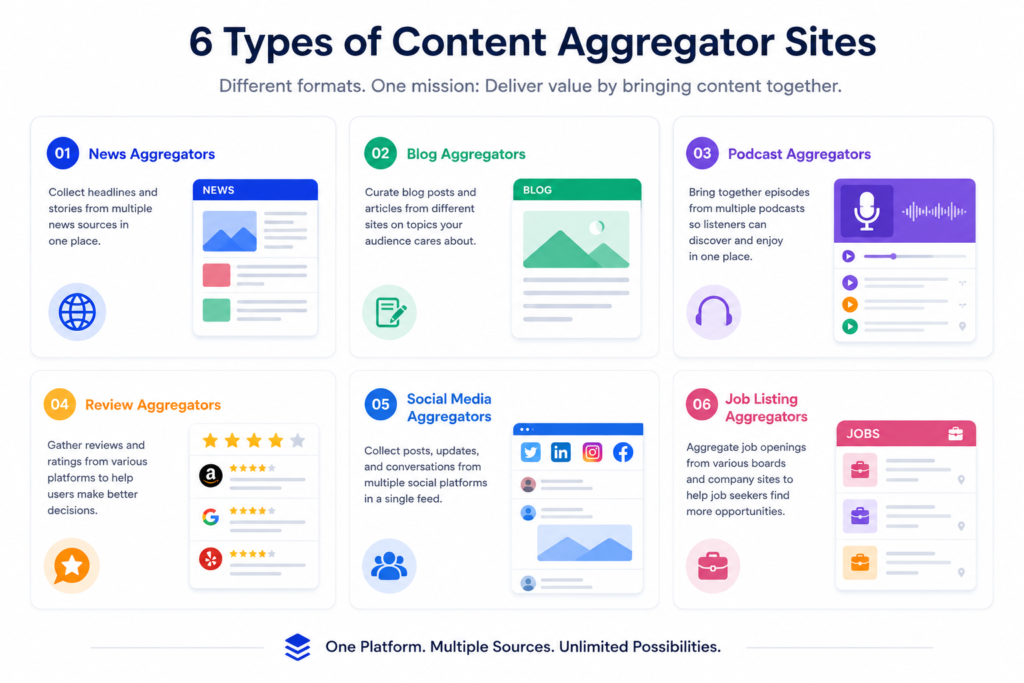
Infographic showing different types of content aggregator sites including news, reviews, podcasts, and social media.

News aggregators

These collect news stories from multiple publishers and present them by topic, trend, or region. Google News is one of the best-known examples, and TechTarget also lists Google News and AllTop among notable aggregators.

Blog and article aggregators

These gather blog posts, thought leadership content, and niche articles from around the web.

Social media aggregators

These pull together posts from platforms like Instagram, X, YouTube, TikTok, or LinkedIn into one stream or campaign hub. TechTarget identifies social media aggregators as a distinct category.

Review aggregators

These combine ratings and reviews from different sources. Rotten Tomatoes is a classic example listed by TechTarget.

Podcast and media aggregators

Platforms such as podcast directories aggregate episodes from many creators into a searchable library. TechTarget also points to Apple Podcasts as an example of aggregation.

Job, deal, or product aggregators

These compile listings, offers, prices, or product data from multiple websites and help users compare options quickly.

Niche industry aggregators

These focus on one vertical, such as SaaS, finance, marketing, healthcare, travel, or real estate.

Examples of Content Aggregator Sites

Examples help make the concept easier to understand. Industry references commonly point to these types of sites:

  • Google News for aggregated news
  • Feedly for articles, blogs, and web updates
  • Flipboard for curated articles and media
  • Rotten Tomatoes for review aggregation
  • Apple Podcasts for podcast discovery

These examples show that content aggregation is not limited to news. It can apply to nearly any kind of digital information.

Why Do People Use Content Aggregator Sites?

The main reason is convenience. A content aggregator site reduces the time and effort required to stay updated.

Professional using a content aggregator site to save time and track multiple sources efficiently.

Benefits for users

Users like aggregators because they:

  • save time
  • reduce information overload
  • simplify research
  • make discovery easier
  • allow personalized browsing

Benefits for businesses

Businesses build or use aggregators because they can:

  • become a go-to resource in a niche
  • attract repeat traffic
  • increase topical authority
  • support newsletter growth
  • generate ad, affiliate, or subscription revenue
  • create a scalable content hub

A well-structured aggregator can become a strong audience-building asset when it adds organization, context, filtering, or expert curation on top of raw content collection.

Why a Content Aggregator Site Can Be Valuable for SEO

A high-quality content aggregator site can support SEO when it adds unique value rather than simply copying content.

SEO advantages

A good aggregator can help by:

  • targeting long-tail topics at scale
  • covering an industry comprehensively
  • earning backlinks as a useful resource
  • keeping pages fresh with regular updates
  • increasing internal linking opportunities
  • capturing search demand across many subtopics

The catch

Aggregation alone is not enough. Search engines are more likely to reward pages that offer:

  • original summaries
  • smart categorization
  • expert commentary
  • strong UX
  • clear sourcing
  • helpful filters and comparisons

If an aggregator only republishes thin or duplicate material, it may struggle to rank.

Common Problems With Content Aggregator Sites

Many aggregator sites fail because they focus only on collecting content, not improving it.

1. Thin content

If pages contain nothing more than copied headlines or short snippets, users and search engines may see little value.

2. Duplicate content risk

If too much text is reproduced from other sources, the site may have difficulty standing out.

3. Copyright and licensing issues

Not every source allows republication. Aggregator site owners need to follow usage rights, terms, and attribution requirements.

4. Poor quality control

Without moderation or editorial review, low-quality or irrelevant content can fill the site.

5. Weak differentiation

If users can get the same experience elsewhere, the aggregator becomes forgettable.

What Makes a Great Content Aggregator Site?

A successful content aggregation website usually does more than gather links. It creates a better experience than checking sources one by one.

Here is what separates strong aggregator sites from weak ones:

Clear niche focus

The best aggregator sites serve a specific audience or topic instead of trying to cover everything.

Strong filtering and search

Users should be able to sort by subject, date, relevance, location, source, or popularity.

Original value-add

This can include summaries, comparisons, expert notes, sentiment analysis, ratings, or curated collections.

Credible sourcing

Users should know where the content came from and why it was selected.

Fast, clean design

Aggregation works best when the interface is simple and easy to scan.

Fresh updates

A stale aggregator loses its purpose quickly.

Content Aggregator Site vs Content Curation Site

These terms are often used interchangeably, but they are not exactly the same.

A content aggregator site mainly focuses on collecting and displaying content from multiple sources. A content curation site usually adds more human judgment, commentary, or editorial selection.

In practice, many websites do both.

For example:

  • an aggregator may gather 500 articles automatically
  • a curated platform may highlight the best 20 with context and recommendations

The strongest sites often blend automation with editorial curation.

Is a Content Aggregator Site Legal?

A content aggregator site can be legal, but it depends on how it handles source material.

Best practices include:

  • linking to the original source
  • using limited excerpts where appropriate
  • giving clear attribution
  • following feed, API, and licensing rules
  • avoiding unauthorized full-text copying
  • honoring robots.txt, platform terms, and publisher restrictions

Legal risk increases when a site republishes too much original content without permission.

How to Build a Content Aggregator Site

If you are planning to launch one, the process usually looks like this:

Choose a niche

Start with a clear audience. Broad aggregators are harder to differentiate. Niche ones often grow faster.

Identify sources

Find trusted websites, creators, feeds, APIs, or publishers relevant to your topic.

Decide your value-add

Will you provide summaries, trends, ratings, alerts, comparisons, or topic clusters?

Pick your technology

You can build with a CMS, custom web app, API stack, RSS tool, or aggregator plugin depending on complexity.

Design the structure

Create categories, tags, filters, search, source pages, and archive logic.

Add editorial standards

Set rules for source quality, freshness, duplication, and compliance.

Optimize for SEO

Use descriptive titles, unique introductions, schema where appropriate, clean internal linking, and helpful category pages.

Promote and refine

Track which topics, formats, and sources drive the most engagement and improve from there.

Who Should Create a Content Aggregator Site?

A content aggregator site can be a smart move for:

  • media startups
  • niche publishers
  • SaaS brands
  • research portals
  • industry associations
  • newsletter operators
  • affiliate marketers
  • community builders

It works especially well when people in your niche are overwhelmed by scattered information and need one trusted place to find it.

Final Answer: What Is a Content Aggregator Site?

A content aggregator site is a website that collects information or media from multiple online sources and organizes it into one location so users can discover, compare, and consume content more easily. It may aggregate news, blogs, podcasts, reviews, social posts, or listings, often using feeds, APIs, or editorial curation. Common examples include Google News, Feedly, Flipboard, Rotten Tomatoes, and podcast platforms.

The best content aggregator sites do more than just gather links. They add structure, relevance, usability, and insight.

If you are building one, the winning formula is simple: aggregate, organize, and add real value.

What is a content aggregator site in simple words?

A content aggregator site is a website that collects content from many sources and shows it in one place so users can find information faster.

What is an example of a content aggregator site?

Examples include Google News, Feedly, Flipboard, Rotten Tomatoes, and Apple Podcasts.

How do content aggregator sites make money?

They can earn money through ads, affiliate links, premium memberships, sponsored placements, data products, or lead generation.

Are content aggregator sites good for SEO?

They can be, but only if they add original value through summaries, categorization, commentary, filtering, or a unique user experience.

Is a content aggregator site the same as a news site?

Not always. Some focus on news, while others aggregate blogs, reviews, jobs, podcasts, products, or social media content.

You built a website. You’re proud of it. You typed your business name into Google expecting to see it sitting at the top — and instead you got nothing. Or worse, you got your competitors.

If you’re a small business owner staring at a website that Google seems to be ignoring, you’re not alone. This is the single most common frustration we hear from clients at MIK Web Solutions. The good news: in almost every case, the reason is fixable. The bad news: most business owners are looking in the wrong place for the cause.

In this guide we’ll walk through every realistic reason your website isn’t showing up on Google, in the order you should actually check them. By the end, you’ll either know exactly what’s broken — or you’ll know it’s time to bring in someone who can find out for you.

First, let’s check the obvious thing

Before you assume something is broken, search for your site this exact way: type site:yourdomain.com into Google (replace yourdomain.com with your actual domain). Hit enter.

If Google shows you a list of pages from your website — congratulations, you’re indexed. Your problem isn’t that you don’t exist on Google. Your problem is that you don’t rank for the searches your customers are actually typing. That’s a different fix, and we’ll get to it below.

If Google shows zero results, then yes — your site truly isn’t on Google yet, and we need to figure out why.

Reason 1: Your site is brand new

If your website went live in the last 1–4 weeks, take a breath. Google doesn’t index new sites instantly. The crawlers need to discover your site, follow the links, and decide it’s worth showing in search results. For a brand-new site with no backlinks and no authority, this can take anywhere from a few days to a couple of months.

What to do: submit your sitemap to Google Search Console. This is the single fastest way to tell Google your site exists and where to look. If you don’t already have Search Console set up, that’s step one — it’s free, takes about 10 minutes, and gives you the data you’ll need to diagnose every other problem on this list.

Reason 2: Your site is blocking Google from crawling it

This one is surprisingly common, and it usually happens by accident. WordPress has a checkbox in the Settings → Reading area called “Discourage search engines from indexing this site.” Developers tick it during the build so the unfinished site doesn’t get indexed. Then they forget to untick it on launch day.

What to check: Log into your WordPress dashboard, go to Settings → Reading, and scroll to the bottom. Make sure that box is unchecked. Then check your robots.txt file (visit yourdomain.com/robots.txt in your browser). If you see Disallow: / on its own line, that’s blocking the entire site from search engines. That line needs to go.

Reason 3: Google has indexed your site, but you’re ranking on page 7

This is the situation most small business owners are actually in — they just don’t realize it. Your site exists on Google, but for the search terms you care about, you’re buried so deep that nobody finds you. Roughly 95% of clicks happen on page one of Google. If you’re on page two or beyond, you might as well not exist.

The fix here isn’t a technical bug — it’s an SEO strategy problem. You need to be targeting the right keywords, with the right content, on a site Google trusts. We cover this in detail further down.

Reason 4: Your site is too slow

Since 2021, Google has officially used page speed as a ranking factor. A site that takes more than 3 seconds to load loses both visitors and rankings. WordPress sites built on cheap shared hosting, with bloated themes and 30 plugins, regularly take 6–10 seconds to load on mobile.

What to check: run your homepage through Google’s PageSpeed Insights (free at pagespeed.web.dev). Look at the Core Web Vitals scores. If they’re red or yellow, that’s almost certainly hurting your visibility. The fixes range from simple (compress images, enable caching) to complex (switch hosts, rebuild with a lighter theme).

Reason 5: Your content doesn’t match what people are searching for

Here’s the uncomfortable truth: if your homepage just says “Welcome to ABC Plumbing — quality service since 1995,” Google has no idea when to show your site. Nobody types “welcome to ABC plumbing” into the search bar. They type “emergency plumber near me” or “how much does it cost to replace a water heater.”

Your pages need to be written around the actual phrases your customers search for. This is what SEO content is — not stuffing keywords, but making sure each page on your site answers a question your potential customers are asking.

Reason 6: You have no backlinks

Google decides which sites to trust partly based on which other sites link to them. A new website with zero links from anywhere else is essentially anonymous. Even with perfect on-page SEO, you’ll struggle to rank against established competitors who have years of links pointing at them.

This isn’t about buying shady links. It’s about getting listed in legitimate local directories (Google Business Profile, Yelp, your industry associations), getting mentioned by local press, partnering with related businesses, and earning links the slow way.

Reason 7: Technical issues you can’t see from the front-end

Some problems only show up if you know where to look. Broken canonical tags telling Google to ignore your pages. Duplicate content from accidentally indexing both yoursite.com and www.yoursite.com. A missing or malformed XML sitemap. Pages with noindex tags applied at the template level. Schema markup errors. SSL certificate problems.

These issues are why most DIY website owners eventually hit a wall. You can’t fix what you can’t see — and the tools to find these issues (Google Search Console, Screaming Frog, Ahrefs) require some experience to interpret.

Reason 8: You got hit by a Google penalty

Rare, but possible. If your site previously ranked and then suddenly disappeared, you may have been caught by a Google algorithm update or — worse — a manual penalty for something the previous developer did (low-quality backlinks, hidden text, scraped content). Search Console will show a manual action notice if this is the case.

What you can do today (in under 30 minutes)

If you want to take action right now, here’s what we’d recommend in order:

Set up Google Search Console and submit your sitemap. This is non-negotiable and it’s free.

Run the site:yourdomain.com check we mentioned at the top. Note how many pages are indexed.

Run your site through PageSpeed Insights and write down your mobile score.

Check your robots.txt and your WordPress reading settings for any indexing blocks.

Search for your business name in Google. If you don’t see your Google Business Profile, that’s a separate (and easy) fix that drives huge local traffic.

These steps will tell you whether you’re dealing with a small fix or a big one.

When it’s time to bring in help

If you’ve worked through this list and your site still isn’t showing up — or worse, you’re not sure where to even start — that’s the point where most small business owners burn weeks trying to teach themselves SEO instead of running their business.

A proper SEO audit looks at all of this for you: indexing, technical health, page speed, content gaps, backlink profile, local SEO, competitor positioning, and the specific keywords your customers are searching for. It tells you exactly what’s wrong and what’s worth fixing first.

At MIK Web Solutions, we run free SEO audits for small businesses every week. We’ll look at your site, check why it’s not showing up where it should, and give you a clear, jargon-free report — with no obligation to hire us afterward.

If you’re tired of guessing why your site isn’t getting traffic, book a free 30-minute strategy session here. We’ll review your site live with you and tell you honestly what’s working, what’s broken, and what to fix first.

Your website should be bringing you customers. Let’s figure out why it isn’t.

Quick notes on how to publish this for max SEO impact

A few things to do when uploading to WordPress:

The article targets the long-tail keyword “why is my WordPress website not showing up on Google” but the H1 above is broader to capture more search variations — both versions (“website not showing up” and “WordPress website not showing up”) will rank from the same article.

Add the focus keyphrase to your SEO plugin (Yoast or RankMath): why is my website not showing up on Google. Set the meta description to: “Your website exists but Google ignores it? Here are 8 real reasons your site isn’t ranking — and how to fix each one. Free audit included.”

Internal-link the words “free SEO audit” near the bottom to your contact page, and link “page speed” to your future post about WordPress hosting (post #6 in your content plan).

Add an FAQ schema block at the bottom with these three questions: “Why is my new website not showing up on Google?”, “How long does it take for Google to index a new WordPress site?”, and “How do I check if my website is on Google?”

If your small business website cannot be used by someone with a screen reader, a keyboard, or low vision, you are quietly turning customers away every single day — and in 2026, you are also taking on real legal risk.

Web accessibility lawsuits crossed 5,100 federal filings in 2025 and are on pace to exceed 5,500 in 2026, according to industry trackers. The Department of Justice’s new ADA Title II rule took effect on April 24, 2026, locking in WCAG 2.1 Level AA as the federal standard for public entities. The European Accessibility Act has been actively enforced since June 2025. And accessibility plaintiffs are now using AI tools to scan websites and draft complaints faster than ever.

Translation: accessible web design is no longer a “nice-to-have.” It is a baseline expectation, a legal requirement, and one of the most overlooked levers for SEO growth.

This guide walks you through what accessibility actually means in 2026, why it matters specifically for small businesses, and how to make meaningful improvements to your site — even on a tight budget.

What Is Accessible Web Design?

Accessible web design is the practice of building websites and digital products so that people of all abilities can perceive, navigate, and interact with them. It follows a global standard called the Web Content Accessibility Guidelines (WCAG), currently at version 2.2 (Level AA is the practical compliance target).

A heads-up on the future: WCAG 3.0 — now officially called the “W3C Accessibility Guidelines” — is in active development, with a substantially complete Working Draft published in early 2026. However, it will not reach final Recommendation status until 2028 or later, and WCAG 2.2 remains the legally enforceable standard in every jurisdiction that references WCAG today. You do not need to design against WCAG 3.0 yet, but it is worth tracking.

An accessible website serves users who experience:

  • Visual impairments — blindness, low vision, and color blindness
  • Hearing impairments — deafness or partial hearing loss
  • Motor or mobility limitations — users who cannot use a mouse or rely on assistive devices
  • Cognitive and neurological differences — dyslexia, ADHD, autism, and memory conditions
  • Situational limitations — bright sunlight, broken arms, slow internet, or noisy environments

The goal is simple: every visitor should be able to find information, complete a purchase, or contact your business — regardless of how they access your site.

Why Accessibility Matters for Small Businesses in 2026

1. ADA Compliance Has Moved from Gray to Black-and-White

For years, small businesses operated in a gray zone where ADA Title III’s application to websites was inferred from court rulings. That ambiguity is gone.

  • The DOJ Title II rule finalized in 2024 explicitly adopted WCAG 2.1 Level AA as the technical standard for state and local government websites, with the main compliance deadline hitting April 24, 2026. Although Title II governs public entities, courts increasingly cite the same standard when ruling on Title III (private business) cases.
  • ADA Title III website lawsuits exceeded 5,100 federal filings in 2025, a 37% year-over-year increase, with New York, Florida, California, and Illinois leading. Illinois alone saw a 746% surge in filings.
  • Mobile apps are now explicitly in scope, with industry analysts projecting mobile-app litigation to reach 15–20% of all digital ADA claims by the end of 2026.
  • A growing share of cases are filed by pro se litigants using AI tools like ChatGPT and Gemini to scan sites and generate complaints. Federal pro se ADA Title III lawsuits jumped 40% in 2025 alone.

The takeaway for small businesses: it is faster and cheaper than ever for someone to identify your site, draft a complaint, and file. The average settlement runs $5,000 to $25,000, not including legal fees and remediation.

2. The European Accessibility Act Affects U.S. Small Businesses Too

The European Accessibility Act (EAA) became enforceable on June 28, 2025, with national-level enforcement intensifying throughout 2026. It applies to any business — including U.S.-based ones — that sells consumer-facing digital products or services to customers in the EU. This includes ecommerce stores, banking, ticketing, and most SaaS.

Penalties can reach €3 million and include removal from the EU market. The EAA references EN 301 549, which incorporates WCAG 2.1 Level AA plus some additional criteria. If you ship to or serve EU customers, this applies to you.

3. You Reach a Significantly Larger Audience

About 1.3 billion people worldwide live with a significant disability — roughly 16% of the global population, per the WHO. Add aging users, mobile users in poor conditions, and non-native English readers, and accessible design directly impacts a massive portion of your potential customer base.

For a small business, this translates to:

  • More qualified traffic from underserved audiences
  • Higher conversion rates because the site is easier for everyone to use
  • Stronger word-of-mouth reputation in your local community

The disability community’s collective spending power exceeds $13 trillion globally when household influence is included.

4. Accessibility Boosts SEO and Core Web Vitals

Google rewards accessible websites because the same practices that help assistive technology also help search crawlers understand your content. Specifically:

  • Semantic HTML (<header>, <nav>, <main>, <article>) gives crawlers a clear content map
  • Descriptive alt text improves visibility in Google Images and AI-powered search summaries
  • Logical heading hierarchy (H1 → H2 → H3) helps featured snippet and AI Overview eligibility
  • Faster, leaner code improves Core Web Vitals scores
  • Captions and transcripts create indexable text from video content

In practice, accessibility and SEO are two sides of the same coin — and as Google leans further into AI-generated answers, structured, accessible content is what gets cited.

5. It Builds Trust and Brand Loyalty

According to the Click-Away Pound research, 71% of users with accessibility needs leave websites that are difficult to use — and they often don’t return. When customers see that you have considered their needs, they remember it. Inclusive design signals that your business is professional, modern, and genuinely customer-focused.

The Core Elements of an Accessible Website

Below are the building blocks every small business website should address. Most can be implemented without a full redesign.

ElementWhat It DoesPriority
Alt text for imagesDescribes images to screen readers and search enginesHigh
Keyboard navigationAllows users to navigate without a mouseHigh
Color contrast (4.5:1 minimum)Ensures text is readable against backgroundsHigh
Semantic HTMLHelps assistive tech and search engines understand structureHigh
Form labelsTells screen readers what each input is forHigh
Focus indicatorsVisually shows which element is selected during keyboard useHigh
Accessible checkout / contact flowsSingle broken step in a multi-step process can block a sale and trigger a lawsuitHigh
Video captions and transcriptsSupports deaf and hard-of-hearing usersMedium
Readable text size and spacingHelps users with dyslexia and low visionMedium
Skip-to-content linksLets screen reader users bypass repetitive navigationMedium
ARIA labels (used sparingly)Adds context to custom interactive elementsSituational

A common mistake is over-using ARIA. The first rule of ARIA is: don’t use ARIA if a native HTML element already does the job. A real <button> is almost always better than a <div role="button">.

Tools to Audit and Improve Your Website’s Accessibility

You do not need an expensive consultant to start. These free and low-cost tools surface most common issues:

  • WAVE — Browser extension that visually flags accessibility problems on any page
  • axe DevTools — Industry-standard Chrome extension trusted by developers
  • Google Lighthouse — Built into Chrome DevTools; gives an Accessibility score alongside Performance and SEO
  • Accessibility Insights for Web — Microsoft’s free tool with both quick and deep audits
  • Color Contrast Analyzer — Verifies your text and background combinations meet WCAG ratios
  • NVDA or VoiceOver — Free screen readers you can use to test your site the way real users would

A Word on Accessibility Overlay Widgets

Tools like AccessiBe, UserWay, EqualWeb, and AudioEye are heavily marketed to small businesses as a one-click compliance fix. In 2026, the data is clear: overlays do not reduce litigation risk. UsableNet’s 2025 lawsuit report shows that suits against websites already using overlay widgets continued to rise month over month. Several overlay vendors have themselves been named as defendants.

Treat overlays as a supplement, not a substitute. The only defensible long-term strategy is code-level remediation — fixing the actual underlying HTML, CSS, and JavaScript so your site is genuinely accessible.

A 30-Minute Accessibility Checklist for Small Businesses

You don’t need to redesign your entire website overnight. Start with these high-impact wins:

  1. Add descriptive alt text to every meaningful image (decorative images can use alt="").
  2. Test your site using only a keyboard — can you reach every link, button, and form field with the Tab key?
  3. Check color contrast on body text, buttons, and links using a free contrast checker (4.5:1 minimum for normal text).
  4. Add proper labels to every form field — not just placeholder text, which disappears on input.
  5. Add captions to video content and transcripts to audio content.
  6. Use semantic HTML elements like <nav>, <main>, <header>, <footer>, and real <button> tags.
  7. Ensure your headings follow a logical order — one H1 per page, then H2s and H3s in sequence.
  8. Make sure focus states are visible — never remove focus outlines without replacing them.
  9. Confirm your site works at 200% zoom without horizontal scrolling.
  10. Run a Lighthouse audit in Chrome DevTools and address anything below 90.

Bonus for ecommerce: walk through your entire checkout flow with a keyboard only. The single most common source of high-payout accessibility lawsuits in 2026 is a checkout step that cannot be completed without a mouse.

Frequently Asked Questions

Is accessible web design expensive for small businesses?

Not necessarily. Many improvements — alt text, contrast adjustments, semantic HTML, form labels — cost little to nothing when handled during regular site updates. Larger projects like full audits or remediation of an older site cost more, but they pay back through reduced legal risk, better SEO, and a larger reachable audience. Compare those costs to an average ADA settlement of $5,000–$25,000, plus legal fees, and the ROI of proactive accessibility is straightforward.

Does ADA compliance apply to mobile apps as well?

Yes. The DOJ Title II rule explicitly includes mobile apps, and Title III courts have applied the same logic to private-sector apps. Lawsuits against apps are rising sharply in 2026, and they must meet the same WCAG 2.1 AA standards as websites.

Can I just install an accessibility plugin or overlay and be done?

No. Plugins and overlays can help with surface-level fixes, but they cannot correct underlying code problems. Lawsuits against websites using overlays increased throughout 2025, and several overlay vendors themselves have been named as defendants. Real accessibility comes from clean semantic code, thoughtful design, and human testing.

What’s the difference between WCAG 2.2 and WCAG 3.0?

WCAG 2.2 is the current legal standard worldwide, using a familiar A / AA / AAA pass-fail structure. WCAG 3.0 (renamed “W3C Accessibility Guidelines”) is in Working Draft status as of 2026 and introduces an outcomes-based scoring system, broader coverage of mobile, VR/XR, and IoT, and stronger guidance on cognitive accessibility. WCAG 3.0 is not yet finalized and will not be referenced by laws until at least 2028. Build to WCAG 2.2 AA today.

My business doesn’t sell to Europe — does the EAA matter?

Probably not directly, but it’s worth knowing about. The EAA only applies to organizations placing products or services on the EU market. If you ship internationally, run a SaaS with EU customers, or operate a multilingual ecommerce store, double-check your obligations with an accessibility specialist or attorney.

Will accessibility make my website look boring or generic?

Not at all. Some of the most beautiful, modern websites in the world are fully accessible. Accessibility constrains how you build, not what you build. You can keep animations, brand personality, video, and creative layouts — they just need to be implemented in ways that include everyone.

How often should I audit my website for accessibility?

Run a quick automated audit (Lighthouse or axe) every time you publish significant new content or redesign a section. A full manual audit is recommended once a year, or any time you launch a major site update. Given the rise of AI-assisted lawsuit filings, ongoing monitoring is far cheaper than reactive remediation after a demand letter.

Final Thoughts: Accessibility Is Good Business in 2026

Accessible web design is not a checkbox or a legal headache. It is a chance to build a website that genuinely works for every customer who lands on it — and one that Google, screen readers, and real users all reward.

For small businesses, the math in 2026 is straightforward: a more inclusive site means more customers, materially less legal risk, better search rankings, and a stronger brand. With ADA filings at record highs, the EAA in active enforcement, and the new DOJ Title II rule now live, the businesses that take accessibility seriously today will have a real advantage over the ones that wait for a demand letter to arrive.

📞 Want a free accessibility checkup for your website? 👉 Contact the team at MIK Web Solutions and we’ll walk through your site, flag the most important issues, and show you exactly what to fix first.

You’ve Googled it. You’ve gotten quotes ranging from $300 to $30,000. You’ve talked to three agencies and still aren’t sure what you actually need or what you should pay.

You’re not confused because you don’t understand business — you’re confused because WordPress website pricing is genuinely inconsistent, and most of what’s written about it is either too vague to be useful or quietly written to sell you a $200/month hosting plan.

This guide fixes that.

We’ll break down what a small business WordPress website actually costs in 2026, what each dollar pays for, what to watch out for, and how to know if you’re getting a fair deal. No upsell. Just the real numbers.

Quick answer: A professional WordPress website for a small business costs between $2,000 and $8,000 to build, depending on complexity and who builds it. Ongoing costs run $100–$250 per month for hosting, maintenance, and updates. The biggest price driver is whether you use a template or hire an agency for a fully custom design.

What Does a WordPress Website Cost? The Short Answer

Before we get into the breakdown, here’s a pricing table you can use as a benchmark right now.

WordPress website cost tiers for small businesses — from basic to eCommerce

1. Domain Name — $10–$20/year

Your domain is your web address: yourcompany.com. It’s one of the cheapest parts of your website and one of the most important.

What to know: Register it for at least 3 years upfront. Google has confirmed that domain registration length is a minor trust signal — and it prevents the embarrassing situation of your domain expiring while you’re busy running your business.

2. Web Hosting — $15–$60/month

Hosting is the server that stores your website and delivers it to visitors. It’s the foundation everything else sits on.

The three main tiers:

  • Shared hosting ($5–$15/month): You share server resources with hundreds of other sites. Fine for a personal blog. Not recommended for a small business that cares about speed and uptime.
  • Managed WordPress hosting ($20–$60/month): Optimized specifically for WordPress. Faster, more secure, with automatic updates and backups. This is what we recommend for almost every small business client.
  • VPS/dedicated hosting ($100+/month): For high-traffic sites or businesses handling sensitive customer data. Most small businesses won’t need this at launch.

Bottom line: Don’t cheap out on hosting. A slow website doesn’t just frustrate visitors — it gets penalized by Google. The difference between a $5/month host and a $30/month managed host is often the difference between a site that ranks and one that doesn’t.

3. WordPress Theme or Custom Design — $50–$5,000

This is where the biggest variation in pricing lives.

  • Free or premium theme ($0–$300): You pick a pre-built design and customize colors, fonts, and images. Fast to launch, but you’ll likely look similar to thousands of other small business sites.
  • Custom design by an agency ($1,000–$5,000): A designer creates your layout, visuals, and structure from scratch, built specifically around your brand and customers.

Custom design isn’t just about aesthetics. A well-designed site guides visitors toward your phone number, your contact form, or your booking page. A template gets you online. A custom design gets you customers.

4. Plugins and Functionality — $0–$500/year

Plugins extend what WordPress can do. A contact form, a booking calendar, a live chat widget, an e-commerce checkout — all of these are plugins.

The good news: many excellent plugins are free. The ones worth paying for (SEO tools, security scanners, advanced form builders) typically cost $50–$150/year each.

Watch out for: agencies that charge you for 30 plugins when you only need 8. A quality build is lean — fewer plugins means fewer security vulnerabilities and a faster site.

5. Content — $0–$2,000+

Google doesn’t rank websites. It ranks pages. Your content — the words, images, headlines, and structure of every page — is what determines whether you show up in search results.

If you write your own content, this is free. If you hire a professional copywriter or have your agency write it, budget $150–$500 per page for quality content that’s both readable and optimized for search.

Skipping good content is the number-one reason small business sites fail to generate organic leads, even after spending thousands on design.

6. Development Labor — $500–$10,000+

This is the work of actually building the site: coding custom features, setting up the theme, configuring plugins, testing across browsers and devices, and launching.

  • Freelancer: $500–$5,000 (quality varies enormously — always ask for references)
  • Boutique US agency: $2,000–$8,000 (vetted process, accountability, communication)
  • Large agency: $10,000–$100,000+ (built for enterprise clients — more than most small businesses need or should pay)

Building the site is a one-time investment. Running it is a monthly one. Here’s what to expect after your site goes live:

ItemMonthly/Annual Cost
Managed WordPress hosting$20–$60/month
Domain renewal$15–$20/year
SSL certificateUsually included with hosting
WordPress maintenance (updates, backups, security)$50–$200/month
SEO services (optional but recommended)$300–$1,500/month
Plugin license renewals$100–$500/year

Realistic total: Most small businesses running a professionally maintained WordPress site spend $120–$280/month after launch — covering hosting, maintenance, and basic ongoing support.

That’s less than a single print ad, and it’s working for you around the clock.

Want to learn more about growing your site after it’s live? Explore MIK’s SEO services →

Why WordPress Pricing Varies So Much (And What to Watch Out For)

You’ve probably gotten quotes that are all over the map. Here’s why — and how to protect yourself.

Red flags when shopping for a WordPress agency

  • Quotes under $800 for a “complete business website” — This almost always means a rushed template build with no SEO setup, no custom design, and no post-launch support. You’ll pay to rebuild it in 18 months.
  • No portfolio or case studies — Any agency worth hiring will show you work they’re proud of. If they can’t, move on.
  • Vague timelines — “4–6 weeks” with no milestones or project phases is a warning sign.
  • You don’t own the site — Some agencies build on proprietary platforms or retain ownership of your domain or files. Always confirm you own everything outright.
  • No mention of SEO or mobile optimization — In 2026, these aren’t optional extras. They’re baseline.

What separates a $2,000 site from a $5,000 site

Factor$2,000 Site$5,000 Site
DesignPremium template, customizedFully custom to your brand
Pages5–7 pages10–15 pages
SEO setupBasic on-page optimizationFull technical SEO, schema, site speed
FeaturesContact form, basic galleryBooking, integrations, advanced forms
Support30 days post-launchOngoing retainer available
Timeline3–4 weeks5–8 weeks

What MIK Web Solutions Builds (and Why It’s Priced Fairly)

At MIK Web Solutions, we’ve built websites for over 35 small businesses across the US — from healthcare and real estate to catering, recovery services, and more.

Here’s what every project includes, regardless of budget tier:

WordPress on Elementor. We build on the industry’s most widely-used visual builder, which means your site is standard, portable, and you can edit it yourself after handoff without touching code.

Mobile-first from day one. Google indexes the mobile version of your site before the desktop version. We design for mobile first and scale up — not the other way around.

SEO fundamentals baked in. Clean URL structure, proper heading hierarchy, page speed optimization, image compression, meta titles, and schema markup are included in every build — not an upsell.

You own everything. Your domain, your hosting account, your files. If you ever choose to leave (though our clients rarely do), you take everything with you.

Real humans, US-based, responsive. We’re not a 300-person offshore operation with a ticket queue. When you email us, you hear back that day.

View our portfolio of small business websites →

DIY vs. Hiring an Agency: An Honest Comparison

We’re not going to tell you DIY is always wrong. For a personal project, a side hustle, or a simple placeholder page, platforms like Wix, Squarespace, or WordPress.com can work fine.

But for a small business actively trying to generate leads and rank on Google? Here’s the honest comparison:

DIY (Wix / Squarespace / WP template)Agency-built WordPress
Upfront costLow ($0–$500)Medium ($2,000–$6,000)
Your time investmentVery highMinimal
Design qualityGeneric templatesCustom to your brand
SEO performanceLimited, surface-levelBuilt-in from day one
Google ranking potentialLow–mediumHigh (with ongoing SEO)
ScalabilityLimitedFully scalable
Post-launch supportYou’re on your ownIncluded or available
OwnershipPlatform-dependentYou own everything

The hidden cost of DIY is your time. If you spend 40 hours building a site over two months, that’s 40 hours not spent on client calls, operations, or growth. For most small business owners, that time is worth more than the agency fee.

Frequently Asked Questions

Can I get a good WordPress website for under $1,000? You can get a template-based site in that range, but expect limited customization, no SEO setup, and minimal support after launch. For a site designed to bring in customers, budget $2,000 and up.

How long does it take to build a WordPress website for a small business? A professional small business site typically takes 3–6 weeks from kickoff to launch. Sites with custom features, integrations, or larger page counts run 6–10 weeks. Avoid agencies that promise a full build in 5 days — corners get cut.

Do I need to pay for ongoing WordPress maintenance? Yes. WordPress core, themes, and plugins release updates regularly. Skipping maintenance is the single biggest cause of hacked or broken business websites. Budget $50–$200/month for a professional maintenance plan, or learn to do it yourself if you have the time.

Will my new site rank on Google? Only if SEO is built in from the start — and even then, ranking takes time. A brand-new site in a competitive market will typically take 3–6 months of consistent SEO effort to appear on page one. If someone promises page-one rankings in 30 days, walk away.

What if I already have a website and just want it improved? A redesign or optimization project typically costs 40–60% of a new build, depending on what’s being updated. We offer free site audits to assess exactly what would move the needle for your specific situation.

Is WordPress better than Shopify or Wix for small businesses? WordPress gives you more flexibility, ownership, and SEO capability than Wix. For product-based businesses, WooCommerce (WordPress’s e-commerce layer) is a strong alternative to Shopify — especially if you want a full website alongside your store, not just a checkout page.

The Bottom Line

Building a WordPress website for your small business is one of the highest-return investments you can make — but only if it’s done right.

Here’s what to take away from this guide:

  • A professional small business WordPress site costs $2,000–$8,000 to build
  • Ongoing costs run $100–$250/month for hosting, maintenance, and support
  • The cheapest option almost always costs more in the long run
  • The most expensive option (large agency, enterprise pricing) is almost never necessary
  • The right agency builds you something you own, that loads fast, and that Google can find

At MIK Web Solutions, we work with small businesses exactly like yours every day. We’re not the cheapest, and we’re not the most expensive — we’re the option that makes sense when you want a site that actually works.

Not sure what your business actually needs? Let’s talk.

Book a free 30-minute strategy session with our team. No sales pitch, no pressure — just an honest conversation about your goals, your timeline, and what it would actually take to get you a website that brings in customers.

Book Your Free Strategy Session →

Introduction: Why Affordable WordPress Web Design Matters

The demand for cost-effective, professional WordPress websites is growing rapidly. Small businesses, freelancers, and startups all want an online presence that looks premium—without paying premium pricing. This is where the concept of affordable WordPress web design becomes extremely powerful.

A well-designed website increases credibility, generates leads, improves brand visibility, and helps you stand out against competitors. But spending thousands of dollars isn’t always possible—especially for new businesses trying to grow.

The good news? With careful planning, smart optimization, and the right WordPress design techniques, you can build an affordable, lightning-fast, conversion-oriented site even with a limited budget.

This article is a complete guide that covers everything—from pricing, recommended tools, page builders, themes, hosting, SEO, and DIY vs agency choice—to help you get the best affordable WordPress web design without compromising on quality.

What Makes WordPress the Best Platform for Affordable Website Design?

WordPress powers more than 43% of all websites globally. Its scalability, open-source architecture, flexibility, and massive plugin ecosystem make it one of the most cost-efficient options in the web industry.

Why WordPress is Affordable:

BenefitExplanation
Free & open-sourceNo license fee required. You can use it forever free.
Thousands of free themesYou can build a site without expensive designs.
Low-cost hosting optionsShared hosting starts from just a few dollars/month.
Drag-and-drop design supportPage builders eliminate the need for expensive coding.
Huge plugin libraryMost features can be added without custom development.

When compared to custom development or enterprise systems, WordPress is hands-down the most sustainable and affordable choice.

Understanding What “Affordable WordPress Web Design” Means

Affordable doesn’t mean cheap. It means:

  • Smart budget allocation
  • Choosing tools for performance, not just appearance
  • Paying only for what you actually need
  • Building scalable foundations for long-term growth

Affordable WordPress web design focuses on value—not shortcuts.

A $200 website might look appealing, but it may lack SEO structure, security, mobile responsiveness, and conversion optimization. Instead, a balanced approach ensures the website performs well, loads fast, ranks on Google, and converts visitors into customers.

What Affects the Cost of WordPress Web Design?

Before choosing a designer or building the site yourself, understand what contributes to the overall cost.

1. Hosting & Domain

  • Domain cost: $8–15/year
  • Hosting: $3–30/month depending on provider

2. WordPress Theme

You can choose:

  • Free Theme (Astra, Blocksy, Kadence)
  • Premium Theme ($40–$79 one-time)

3. Page Builder

  • Elementor, Bricks, Kadence Blocks
  • Free versions available
  • Pro upgrades optional

4. Plugins & Integrations

  • Most essential plugins are free
  • Premium ones may cost extra

5. Customization Level

The more advanced the feature, the more time it requires—impacting cost.

6. Page Requirements

A single-page site is cheaper than a full multi-page business website.

You can build an affordable WordPress site by prioritizing must-have features first, then scaling gradually.

Best Tools for Affordable WordPress Website Design

Here are the recommended tools that balance price + performance perfectly.

Recommended Themes (Free & Lightweight)

  • Astra Theme
  • Kadence WP
  • Blocksy
  • Hello Elementor (for Elementor users)

Best Affordable Page Builders

  • Elementor Free + Custom CSS (if needed)
  • Gutenberg/Kadence Blocks (core blocks, best for performance)
  • Oxygen/Bricks (for developers, highly optimized)

Must-Have Plugins

PluginPurpose
RankMath/Yoast SEOSearch engine optimization
WP Rocket/PerfmattersSpeed & caching
Contact Form 7/Fluent FormsForms & lead collection
Elementor/Kadence BlocksPage building
Smush/ShortpixelImage compression

All of these solutions help you build a premium-looking website without paying huge development costs.

Step-by-Step Guide to Building an Affordable WordPress Website

Step 1: Purchase Domain & Hosting

Choose hosting that offers:

  • Fast LiteSpeed servers
  • Good uptime
  • SSL support
  • Affordable pricing

Best low-cost hosting options:

  • Hostinger
  • SiteGround
  • Namecheap EasyWP
  • Bluehost
  • Cloudways (for performance-focused users)

Step 2: Install WordPress & Basic Setup

  • Install SSL (free)
  • Configure permalink structure
  • Install a lightweight theme
  • Add essential plugins

Step 3: Design Your Website Layout

Focus on:

  • Simple navigation
  • Clear CTA (call-to-action)
  • Easy readability
  • Mobile responsiveness

Step 4: Optimize for SEO

Without SEO, even the best website won’t get traffic.

Focus on:

  • Keyword optimization
  • Fast loading performance
  • Schema markup
  • Internal linking
  • Quality content

Use this article as a reference example—it’s exactly how you should create content for ranking.

Why Mobile-Optimized WordPress Design Matters for Budget Websites

Over 65% of users browse from mobile.
If your website isn’t responsive, you lose customers.

Affordable design should include:

  • Fluid grids
  • Compressed images
  • Touch-friendly buttons
  • No layout shifting (CLS fix)

A responsive design also increases conversions and improves Google rankings.

Affordable WordPress Web Design Packages – What You Can Expect

Package TypeAverage Price
Basic One-Page$150–$350
Multi-Page Business Website$400–$950
Ecommerce/Online Store$800–$2000+
Custom WordPress Build$2000–$5000+

If your budget is limited, start small.
Even a clean one-page website can rank well and convert if built properly.

DIY WordPress Design vs Hiring an Affordable Designer

DIY Pros:

  • Low cost
  • Full creative control
  • Learn new skills

DIY Cons:

  • Time-consuming
  • Not always SEO-optimized
  • Limited design experience

Hiring a designer ensures:

✔ Professional layout
✔ SEO-ready structure
✔ Conversion-focused design
✔ Faster launch

It’s worth investing in expert support when you want long-term results.

SEO Tips to Rank Higher for “Affordable WordPress Web Design”

To dominate this keyword, follow these ranking signals:

1. Publish Content like This Article (Long-Form + Deep Value)

Google ranks depth, clarity, and usefulness.

2. Build Backlinks from Relevant Sites

  • Guest posts
  • Blog outreach
  • Directory submissions
  • Business listings

3. Optimize On-Page SEO

  • Keywords in title, headings, URL & meta
  • Use variation keywords:
    • low-cost WordPress web design
    • Budget WordPress website developer
    • affordable WordPress website packages

4. Improve Core Web Vitals

  • Fast hosting
  • Minified CSS/JS
  • Lazy-load images

5. Add Local SEO Targeting (if service-based)

Rank for searches like:

  • affordable WordPress web design usa
  • wordpress website designer near me

Conclusion

Affordable WordPress web design is not about choosing the cheapest option. It’s about getting maximum value from your investment. With a powerful CMS like WordPress, lightweight themes, smart plugins, and an SEO-optimized structure, you can build a fast, professional, scalable business website without overspending.

Whether you’re building it yourself or hiring a developer, use this guide as your foundation. Quality doesn’t always require high cost. Strategy does.

If you’re planning to build a modern WordPress website on a budget, start now. Every day without a website is a day customers can’t find you.

Introduction: Why Ecommerce Development Matters More Than Ever

The e-commerce world isn’t slowing down. In fact, global e-commerce sales are projected to reach $8.1 trillion by 2026 (Statista). With millions of new online stores entering the market every year, competition is fierce.

For small and medium-sized businesses (SMBs), the challenge is clear: how do you build a powerful e-commerce presence without draining your budget?

The answer lies in affordable ecommerce development services—solutions that give you professional design, functionality, and growth potential at a price your business can sustain.

In this ultimate guide, we’ll break down what ecommerce development services include, how to evaluate affordable providers, the best platforms to consider, and strategies to maximize ROI.

1. What Are Ecommerce Development Services?

Ecommerce development services cover everything required to create and run an online store. This includes:

  • Website design & development – From UI/UX design to backend coding.
  • Shopping cart & checkout integration – Secure, fast, and user-friendly.
  • Payment gateway setup – PayPal, Stripe, Square, and other processors.
  • Mobile optimization – Ensuring your store looks perfect on any device.
  • SEO & marketing integration – To drive organic traffic.
  • Security setup – SSL, firewalls, and PCI compliance.
  • Maintenance & support – Keeping your store up-to-date.

💡 Quick Insight: While DIY site builders can get you online fast, professional ecommerce developers ensure your site is optimized for speed, conversions, and scalability.

2. Why Affordable Ecommerce Development Services Are Critical in 2025

Rising advertising costs, inflation, and competition mean businesses can’t afford bloated development fees. Here’s why affordability is key:

  • Budget Allocation: Small businesses must balance web development with marketing, inventory, and customer service.
  • Fast ROI: Affordable solutions shorten the break-even period, making ecommerce growth sustainable.
  • Scalability: Affordable doesn’t mean cheap—it means you can grow gradually instead of overspending upfront.

📊 Stat: 74% of small businesses say affordability is the #1 factor when selecting a digital service provider (Forbes, 2024).

3. Core Features of Affordable Ecommerce Development Services

When searching for affordable providers, make sure the following essentials are included:

  1. Customizable Templates + Branding – Affordable, but aligned with your brand identity.
  2. Responsive Mobile Design – Mobile accounts for 75% of ecommerce sales in 2025.
  3. Secure Payment Integration – Trust is crucial; SSL & PCI compliance are must-haves.
  4. SEO-Ready Architecture – Optimized URLs, metadata, schema, and fast-loading pages.
  5. Analytics & Marketing Tools – Google Analytics, email integrations, and social links.
  6. Scalability Options – Ability to add products, categories, and integrations later.

4. Best Affordable Ecommerce Platforms in 2025

Here’s how the top platforms stack up:

PlatformMonthly CostBest ForProsCons
Shopify$39–$399SMBs & startupsAll-in-one, easy to use, scalableMonthly fees, app costs add up
WooCommerce (WordPress)Free + hostingFlexible storesHighly customizable, SEO-friendlyRequires technical setup
BigCommerce$39–$399Growth-stageBuilt-in features, multi-channelSlightly higher cost than Shopify
Wix / Squarespace$20–$50Entry-levelAffordable, easy setupLimited scalability for large stores

💡 Tip: For true affordability, WooCommerce with managed WordPress hosting often delivers the best cost-to-control ratio.

5. Affordable Ecommerce Development vs DIY Builders

While Wix and Squarespace are budget-friendly, professional ecommerce developers provide:

  • Custom-coded features for unique needs.
  • Conversion-focused designs to increase sales.
  • Speed optimization for better SEO.
  • Stronger security and long-term stability.

👉 Example: A DIY Shopify store might cost $39/month, but without professional optimization, you’ll miss out on SEO traffic and conversions. An affordable developer could double your ROI by making small improvements.

6. How to Choose the Right Affordable Ecommerce Partner

Before hiring:

  • Check their portfolio: Do they have relevant industry experience?
  • Read reviews & testimonials: Trust is critical.
  • Ask about scalability: Can your site grow with your business?
  • Understand hidden fees: Some agencies charge extra for updates or plugins.

🚩 Red Flags to Avoid:

  • Promises of “ultra-cheap” sites under $500 with no SEO.
  • Developers who can’t provide case studies or real results.

7. Pricing Breakdown: What “Affordable” Really Means

Affordable doesn’t mean the same as cheap. Here’s the realistic breakdown:

  • Basic Store Setup (WooCommerce/Shopify): $1,500–$3,000
  • Mid-Range Ecommerce Website: $3,000–$7,500
  • Advanced/Scalable Ecommerce Store: $8,000–$15,000+

Ongoing costs:

  • Hosting: $10–$50/month (WooCommerce)
  • Shopify/BigCommerce fees: $39–$399/month
  • Domain & SSL: $15–$100/year

8. SEO & Marketing Integration for Affordable Growth

An ecommerce site is only valuable if customers find it. Affordable services should include:

  • Keyword Research & On-Page SEO – Optimize titles, descriptions, and categories.
  • Technical SEO – Site speed, schema markup, and sitemaps.
  • Content Marketing – Blogs, product guides, and videos.
  • PPC & Retargeting – Affordable Google & Facebook Ads.
  • Social Media Integration – Shoppable Instagram/TikTok posts.

📊 Stat: 43% of ecommerce traffic comes from organic search (SEMRush, 2024).

9. Future Trends in Affordable Ecommerce Development

Affordable services must prepare you for tomorrow:

  • AI-driven personalization – Chatbots, product recommendations.
  • Voice Commerce – Optimizing for Alexa, Siri, and Google voice searches.
  • AR & VR Shopping – Virtual try-ons, product previews.
  • Headless Ecommerce – Lower-cost, API-driven solutions for flexible stores.

10. Case Study: Small Business Success

A local clothing boutique invested $3,500 in an affordable WooCommerce store.

  • Features: Mobile-first design, SEO integration, cart recovery emails.
  • Results: Sales doubled in 6 months, 60% from organic search.
  • ROI: They recouped costs in 3 months and scaled with new integrations.

11. Where to Find Affordable Ecommerce Developers

  • Freelance Platforms: Upwork, Fiverr (good for simple tasks, but vet carefully).
  • Boutique Agencies: More affordable than big agencies, but still high quality.
  • Specialized Agencies like MIK Web Solutions: Offer dedicated ecommerce development for SMBs at flexible rates.

12. Final Thoughts

In 2025, affordable ecommerce development services are the backbone of small business success. The goal isn’t just to launch a store—it’s to launch one that’s optimized for growth, SEO, and customer experience without overspending.

👉 If you’re ready to grow, our team at MIK Web Solutions specializes in affordable, scalable ecommerce development services tailored for small businesses.

FAQs

What’s the average cost of affordable ecommerce development services?

Anywhere from $1,500 to $7,500 depending on scope and platform.

Which platform is most affordable?

WooCommerce (WordPress) is the cheapest to start, while Shopify is the most cost-effective all-in-one.

Can I scale later if I start small?

Yes—scalability is key. Affordable services should allow for upgrades.

How do I know if an ecommerce developer is reliable?

Check reviews, ask for a portfolio, and ensure they include SEO in their services.

Do affordable ecommerce services include marketing?

Some do—look for packages that include SEO, email integrations, and analytics setup.

Sources & References

Introduction: Why Ecommerce Web Design Packages Matter in 2025

In today’s digital marketplace, having an ecommerce website isn’t optional—it’s the core of your business. Whether you sell clothing, electronics, beauty products, or services, your website is the first impression customers have of your brand. The challenge? Building an ecommerce site that is not only attractive but also optimized for conversions, SEO, and long-term growth.

This is where ecommerce web design packages come in. Instead of piecing together separate design, development, and marketing services, businesses can choose an all-in-one package that covers every aspect of building and maintaining a successful online store.

At MIK Web Solutions, we specialize in creating tailored ecommerce web design packages for businesses across the US—helping startups and established brands scale with professional, high-performing websites.

What Are Ecommerce Web Design Packages?

Ecommerce web design packages are bundled services that include everything needed to launch, grow, and maintain an online store. Instead of hiring multiple freelancers or agencies for design, development, SEO, and marketing, a package offers one streamlined solution.

Typical inclusions:

  • Custom Website Design (UI/UX tailored to your brand)
  • Ecommerce Platform Setup (WordPress + WooCommerce, Shopify, or custom build)
  • Mobile Responsive Design
  • Product Page Optimization
  • Payment Gateway Integration
  • SEO Setup & Optimization
  • Speed & Security Enhancements
  • Ongoing Maintenance & Support

By investing in the right package, businesses save time, money, and stress while ensuring their website meets modern ecommerce standards.

Why Your Business Needs a Professional Ecommerce Website

Before diving into specific ecommerce web design packages, let’s understand why professional ecommerce websites are crucial:

  1. First Impressions Count
    Studies show that users decide within 5 seconds whether they trust a website. Poor design means lost sales.
  2. Conversion-Driven Design
    A good ecommerce site isn’t just beautiful—it’s structured to guide visitors toward making purchases.
  3. SEO & Visibility
    Without SEO, your store may never show up in Google searches. Packages often include on-page optimization, keyword research, and sitemap setup.
  4. Scalability
    As your business grows, you need a site that can handle more products, more customers, and more orders—without crashing.
  5. Customer Trust & Security
    SSL certificates, secure payment gateways, and compliance with privacy laws are essential for building customer trust.

Types of Ecommerce Web Design Packages

1. Basic Ecommerce Web Design Package

Perfect for startups or small businesses testing the waters.

Features often include:

  • 5–10 product pages
  • Mobile-friendly design
  • Basic SEO setup
  • Payment gateway integration
  • Standard theme customization

👉 Ideal for businesses with a limited budget but who want a strong online presence.

2. Standard Ecommerce Web Design Package

Best for growing businesses that need advanced features.

Includes everything from the basic plan plus:

  • Up to 50 product uploads
  • Custom product filters and categories
  • Blog integration for content marketing
  • Enhanced SEO strategy
  • Google Analytics & tracking setup

👉 Suitable for businesses aiming to scale and optimize user experience.

3. Advanced Ecommerce Web Design Package

Designed for established businesses needing a fully customized ecommerce solution.

Includes:

  • Unlimited product uploads
  • Fully custom design (UI/UX)
  • AI-driven product recommendations
  • Multi-currency & multi-language support
  • Integration with CRM & ERP systems
  • Speed optimization for high traffic

👉 Perfect for enterprises and businesses selling internationally.

4. Custom Ecommerce Web Design Package

For businesses with unique requirements, a custom package ensures the website is built exactly as needed.

Examples:

  • Subscription box ecommerce sites
  • Marketplace platforms (multi-vendor)
  • B2B ecommerce solutions
  • Integration with warehouse management or POS systems

Ecommerce Platforms We Use at MIK Web Solutions

At MIK Web Solutions, we tailor our ecommerce web design packages based on the platform that fits your business:

  • WordPress + WooCommerce – Flexible, SEO-friendly, and cost-effective.
  • Shopify – Great for fast, reliable, and user-friendly ecommerce setups.
  • Custom Development – MERN stack or Next.js solutions for businesses needing complete scalability and control.

Cost of Ecommerce Web Design Packages in the US

One of the most common questions we hear is: “How much does an ecommerce web design package cost?”

Pricing depends on complexity, features, and platform choice. Here’s a general guide:

  • Basic Package: $1,000 – $2,500
  • Standard Package: $3,000 – $5,000
  • Advanced Package: $6,000 – $10,000+
  • Custom Package: Starts from $8,000 and up

At MIK Web Solutions, we provide transparent pricing with no hidden fees, tailored to your exact needs.

Benefits of Choosing an Ecommerce Web Design Package

  1. All-in-One Solution – No need to manage multiple vendors.
  2. Cost-Effective – Bundled services save money compared to hiring individually.
  3. Consistency – Cohesive branding and design across all website elements.
  4. Time-Saving – Faster development and launch timelines.
  5. Ongoing Support – Many packages include maintenance, updates, and technical help.

SEO Optimization in Ecommerce Packages

A stunning website without SEO is like opening a store in the desert. At MIK Web Solutions, every ecommerce web design package includes:

  • Keyword optimization for product and category pages
  • Meta titles, descriptions, and alt tags
  • Technical SEO (sitemaps, robots.txt, schema markup)
  • Blog integration for content marketing
  • Speed optimization for Core Web Vitals

This ensures your ecommerce store doesn’t just look good—it ranks on Google and brings in traffic.

Common Mistakes to Avoid When Choosing Ecommerce Packages

  1. Choosing the cheapest option without considering scalability.
  2. Ignoring SEO at the design stage.
  3. Using generic templates that don’t match your brand identity.
  4. Not including mobile optimization (over 70% of ecommerce traffic is mobile).
  5. Overlooking security features like SSL and backups.

How MIK Web Solutions Delivers High-Performing Ecommerce Sites

At MIK Web Solutions, we go beyond templates. Our process includes:

  1. Consultation & Strategy – Understanding your business goals.
  2. Custom Design – Tailoring UI/UX to your brand.
  3. Development & Testing – Building fast, secure, and scalable stores.
  4. SEO & Marketing Setup – Ensuring visibility from day one.
  5. Ongoing Support – Regular updates, security patches, and performance monitoring.

We’ve helped dozens of businesses increase conversion rates, traffic, and revenue with our ecommerce web design packages.

Frequently Asked Questions (FAQ’s)

What’s included in an ecommerce web design package?

Packages usually include design, development, SEO, product uploads, payment setup, and support.

How long does it take to build an ecommerce website?

On average, 2–6 weeks, depending on package type and complexity.

Do you provide ongoing support after launch?

Yes. All our ecommerce web design packages come with optional maintenance and support.

Can you redesign an existing ecommerce store?

Absolutely. We specialize in revamping old websites to improve performance and design.

Which platform is best—Shopify or WooCommerce?

It depends on your business. WooCommerce is great for customization, while Shopify is perfect for ease of use.

Final Thoughts & Call to Action

Your ecommerce website is the foundation of your digital business. Investing in the right ecommerce web design package ensures your site is professional, secure, and optimized for growth.

At MIK Web Solutions, we don’t just build websites—we create ecommerce platforms that generate sales and scale with your business.

👉 Ready to grow your online store?
Contact us today to learn more about our ecommerce web design packages.

When your website suddenly crashes or stops working, the first thought that comes to mind is “I need emergency WordPress help right now.” For business owners, bloggers, and online stores, downtime isn’t just an inconvenience—it can mean lost sales, damaged reputation, and frustrated visitors.

At MIK Web Solutions, we specialize in urgent WordPress support and rapid fixes to get your site back online fast. If you’re facing a website emergency, don’t wait—contact us here for immediate assistance.

Understanding Why WordPress Websites Break

Before you can fix the problem, you need to understand what caused it. WordPress site failures almost always fall into one of five categories.

1. A Failed Plugin or Theme Update

Plugin and theme updates are the single most common cause of WordPress emergencies. A plugin that updates with a code conflict, an incompatibility with your current version of PHP, or a clash with another installed plugin can bring your entire site down in seconds. This is especially common on sites running a large number of plugins — the more moving parts, the greater the risk of conflict.

2. A PHP Version Mismatch

Your hosting provider may automatically update your server’s PHP version to improve performance and security. If your theme or a key plugin was not built to support the newer PHP version, your site can break instantly. This is one of the most disorienting emergencies for site owners because nothing on the WordPress side appears to have changed — yet the site stops working.

3. A Corrupted Database

WordPress stores every page, post, setting, and user account in a MySQL database. If that database becomes corrupted — through an incomplete update, a server failure, or a poorly executed migration — your site can become completely inaccessible. Corrupted database tables are a serious issue that typically requires professional intervention.

4. A Hacked or Compromised Website

WordPress powers over 43% of the internet, which makes it a high-value target for malicious actors. If your site has been hacked, you may notice unexpected redirects, strange content appearing on your pages, a Google “deceptive site” warning blocking visitors, or your hosting provider suspending your account due to malware detection. A compromised WordPress site is both a technical emergency and a reputational crisis.

5. Hosting Server Issues

Sometimes the problem has nothing to do with WordPress itself. Server outages, exceeded resource limits, misconfigured .htaccess files, or expired SSL certificates can all cause your site to become inaccessible. These issues require access to your hosting control panel or direct contact with your hosting provider’s support team.

The Most Common WordPress Error Messages and What They Mean

Knowing how to read a WordPress error message is the first step toward resolving it. Here are the most frequent errors site owners encounter during a WordPress emergency.

The White Screen of Death (WSOD) A completely blank white page with no error message. This typically indicates a PHP fatal error caused by a plugin conflict, a theme malfunction, or memory exhaustion. It is alarming in appearance but usually fixable without data loss.

Error Establishing a Database Connection This message means WordPress cannot connect to your MySQL database. Causes include incorrect database credentials in your wp-config.php file, a crashed database server, or a corrupted database table.

500 Internal Server Error A generic server-side error with many possible causes, including a corrupted .htaccess file, a PHP timeout, or a memory limit being exceeded. It requires investigation at the server level rather than the WordPress dashboard.

403 Forbidden Your server is refusing to allow access to the requested resource, usually due to incorrect file permissions or a security plugin blocking access.

404 Not Found on All Pages If your homepage loads but all other pages return a 404, the most common culprit is a corrupted .htaccess file or WordPress permalink settings that need to be refreshed.

ERR_TOO_MANY_REDIRECTS A redirect loop has been created — your site is bouncing visitors between URLs in an infinite cycle. This is frequently caused by misconfigured SSL settings or a plugin that manages redirects.

Quick Fixes You Can Try Before Calling for Help

Depending on the nature of your WordPress emergency, there are several steps you can attempt yourself before escalating to a professional. Work through these methodically, making only one change at a time so you can isolate the cause.

Step 1: Check Your Hosting Status First

Before diagnosing anything inside WordPress, verify that the problem is not on your hosting provider’s end. Visit your hosting provider’s status page, check for any active incidents or scheduled maintenance, and confirm that your hosting plan has not expired or exceeded its resource limits. If the server itself is down, no WordPress fix will resolve it.

Step 2: Restore From a Recent Backup

If you have a recent backup — and every WordPress site owner should — restoring to the last known good version of your site is often the fastest path to recovery. Most quality managed WordPress hosts, including Kinsta, WP Engine, and SiteGround, offer one-click backup restoration from the hosting dashboard. If you use a backup plugin such as UpdraftPlus or BlogVault, restore from there.

This is the single most important reason to maintain daily automated backups. In an emergency, a 24-hour-old backup is infinitely more valuable than no backup at all.

Step 3: Deactivate All Plugins via FTP

If your WordPress dashboard is inaccessible — which it often is during a WSOD or 500 error — you cannot deactivate plugins through the normal admin panel. Instead, use FTP (or your hosting file manager) to navigate to wp-content/plugins/ and rename the entire plugins folder to something like plugins_disabled. WordPress will automatically deactivate all plugins when it cannot find the folder. If your site comes back, you have confirmed a plugin conflict. Rename the folder back to plugins, then reactivate them one by one to identify the culprit.

Step 4: Switch to a Default WordPress Theme

Similar to the plugin deactivation process, a faulty theme can be responsible for your site failure. Via FTP, navigate to wp-content/themes/ and rename your active theme folder. WordPress will fall back to a default theme (such as Twenty Twenty-Four). If your site loads again, your theme was the cause.

Step 5: Regenerate Your .htaccess File

A corrupted .htaccess file is a frequent cause of 500 errors and 404 issues. Via FTP, rename your existing .htaccess file to .htaccess_old, then log into your WordPress dashboard (if accessible) and navigate to Settings → Permalinks and click Save Changes. WordPress will automatically generate a fresh .htaccess file.

Step 6: Increase the PHP Memory Limit

If you are experiencing a WSOD and have access to your wp-config.php file via FTP, add the following line before the “That’s all, stop editing!” comment:

define('WP_MEMORY_LIMIT', '256M');

This increases the memory available to WordPress and can resolve crashes caused by memory exhaustion, particularly on media-heavy or plugin-heavy sites.

Step 7: Enable WordPress Debug Mode

For developers and technically confident site owners, enabling WP_DEBUG in your wp-config.php file will surface the specific PHP error causing your site to fail. Add this line:

define('WP_DEBUG', true);

Once you have identified and resolved the issue, remember to disable debug mode immediately — displaying PHP errors on a live site is a security risk.

When to Stop and Call a WordPress Emergency Expert

The DIY steps above resolve the majority of common WordPress emergencies. However, there are situations where attempting further self-diagnosis can make things significantly worse — particularly when databases are involved, when your site has been hacked, or when you are not confident working via FTP and server-level file management.

Call a professional WordPress emergency support service immediately if:

  • Your site has been hacked and you can see malicious content, unexpected redirects, or your hosting provider has suspended your account
  • You cannot access your WordPress admin panel and the DIY steps above have not resolved the issue
  • You have attempted plugin deactivation and theme switching but the site remains broken
  • Your database is showing corruption errors
  • You have accidentally deleted files or overwritten core WordPress files
  • Customer data, payment information, or sensitive business data may have been exposed
  • Your site has been down for more than two hours with no clear resolution path

In any of these scenarios, the risk of further data loss or extended downtime outweighs the cost of professional help. A qualified WordPress developer can typically diagnose and resolve most emergencies within one to four hours.

What Professional Emergency WordPress Support Looks Like

Not all WordPress support services are equal. When your site is down and every minute matters, you need a provider that offers specific, structured emergency capabilities.

Response Time Guarantees Look for services with clearly stated emergency response SLAs — ideally under one hour for critical site-down situations. Avoid generic support services where your ticket joins a queue with no priority escalation.

Access Without Sharing Your Password Professional WordPress developers use secure methods to access your site for diagnosis — including temporary admin accounts, SSH access, or hosting panel collaboration tools. Be cautious of any “emergency” service that asks you to email your admin password in plain text.

Malware Removal Expertise A hacked WordPress site requires more than deleting malicious files. An expert will scan all files, the database, and server logs; remove all traces of the infection; harden your site against reinfection; and submit a Google reconsideration request if your site has been flagged in search results. Services like Sucuri and Wordfence offer specialised malware removal at the plugin level, while managed security providers offer hands-on remediation.

Root Cause Analysis Fixing the immediate problem without identifying its root cause means the same issue will likely return. A professional emergency WordPress support provider should deliver a clear written explanation of what caused the failure, what was done to resolve it, and what preventative measures should be implemented to avoid recurrence.

Post-Recovery Hardening After resolving an emergency, a professional should recommend and implement immediate security hardening — including two-factor authentication, login attempt limiting, file integrity monitoring, and a firewall configuration review.

How to Prevent WordPress Emergencies Before They Happen

The best emergency WordPress support is the kind you never need. Implementing a proactive maintenance strategy dramatically reduces both the frequency and severity of WordPress site failures.

Automated Daily Backups With Off-Site Storage Never rely solely on your hosting provider’s backup schedule. Use a dedicated backup plugin like UpdraftPlus, BlogVault, or Jetpack Backup to maintain daily copies of your site stored in an off-site location such as Amazon S3, Google Drive, or Dropbox. Test your backups quarterly by restoring to a staging environment.

A Staging Environment for All Updates Updates should never be applied directly to a live site without testing. A staging environment — an exact copy of your site hosted separately — allows you to test plugin updates, theme changes, and WordPress core upgrades before they touch your production site.

Managed WordPress Hosting Premium managed WordPress hosts provide server-level caching, automated security scanning, one-click backups, and expert support from teams who specialise exclusively in WordPress infrastructure. The additional monthly cost is negligible compared to the cost of a single day’s downtime for most businesses.

Regular Security Audits A quarterly WordPress security audit should include a review of user accounts and access permissions, an audit of installed plugins (removing any that are inactive, outdated, or abandoned by their developers), a check of file permissions, a review of your SSL configuration, and a scan for known vulnerabilities using tools like WPScan or iThemes Security Pro.

An Emergency Response Plan Document a clear internal response plan before an emergency occurs. This should include the login credentials for your hosting panel stored securely in a password manager, the contact details for your WordPress developer or support provider, step-by-step instructions for restoring a backup, and the contact for your domain registrar in case DNS changes are needed.

Choosing the Right WordPress Emergency Support Provider

Whether you need a one-time emergency fix or ongoing WordPress maintenance and support, evaluating providers on the following criteria will help you make a confident decision.

Look for WordPress-specific expertise rather than general web developers who also “do WordPress.” Ask for documented case studies of emergency resolutions they have handled. Confirm that they offer out-of-hours emergency support if your business operates outside standard weekday hours. Verify that they maintain confidentiality agreements for any sensitive data they may access during a site recovery. And ensure that their pricing is transparent — some providers charge flat emergency rates, others charge hourly, and knowing this in advance prevents unwelcome surprises when you are already under stress.

Conclusion: Fast Action and the Right Help Make All the Difference

A broken WordPress website is stressful, costly, and — if left unresolved — damaging to your brand’s reputation in search results and with your customers. But with the right knowledge, a calm and methodical approach, and access to professional emergency WordPress support when you need it, most site failures can be diagnosed and resolved within hours.

The businesses that suffer least from WordPress emergencies are not those who never experience them. They are the ones who prepared — with reliable backups, tested recovery processes, and a trusted WordPress support partner on call. Start building that safety net today, before the moment you need it.

Final Thoughts

Needing emergency WordPress help can feel overwhelming, but you don’t have to face it alone. From sudden crashes and login errors to full-scale hacks, problems can strike anytime. The key is acting quickly, trying basic troubleshooting, and knowing when to call in professionals.

At MIK Web Solutions, we provide fast, reliable, and secure emergency WordPress help to restore your website and safeguard it against future issues.

👉 Don’t let downtime hurt your business. Contact us today for immediate WordPress emergency support.

Not every visitor converts the first time they land on your website. In fact, studies show that only about 2% of web traffic converts on the first visit. So what about the other 98%? That’s where retargeting ads come in.

Retargeting (or remarketing) is one of the most powerful strategies in digital marketing—it helps you stay top of mind, build trust, and ultimately turn window shoppers into paying customers.

What Are Retargeting Ads?

Retargeting ads are display or social media ads shown to people who have already interacted with your brand—whether they visited your website, added items to their cart, or engaged with your content.

These ads “follow” users across platforms like Google Display Network, Facebook, Instagram, and even TikTok. The goal? Remind them of your products or services until they’re ready to buy.

Why Retargeting Works

  1. Repetition Builds Familiarity
    The “Rule of 7” in marketing suggests people need to hear your message multiple times before acting. Retargeting ensures they see your brand often, making it easier to recall.
  2. Warmer Audiences Convert Faster
    Retargeted audiences are already familiar with your brand. That’s why retargeting ads have a CTR 10x higher than regular display ads (WordStream).
  3. Cart Abandonment Recovery
    Nearly 70% of shopping carts are abandoned online. Retargeting with a discount, free shipping, or reminder often pulls customers back to complete their purchase.

Types of Retargeting Ads

  1. Pixel-Based Retargeting
    Uses a small piece of code (pixel) to track visitors and show them ads across networks.
  2. List-Based Retargeting
    Uses email lists (like newsletter subscribers or past buyers) to create custom audiences.
  3. Dynamic Retargeting
    Shows users the exact products they viewed, making ads feel personalized and increasing the chance of conversion.

Best Practices for High-ROI Retargeting

  • Segment Your Audience
    Don’t show the same ad to all visitors. Segment by behavior:
    • Homepage visitors
    • Product viewers
    • Cart abandoners
  • Use Strong CTAs
    “Come back and save 20%” works better than “Check out again.”
  • Limit Ad Frequency
    Bombarding users can backfire. Stick to 7–12 exposures over a few weeks.
  • Incentivize Return Visits
    Offer discounts, free shipping, or a bonus to nudge hesitant buyers.
  • Cross-Platform Retargeting
    Run retargeting campaigns on Google Display, Facebook/Instagram, TikTok, and LinkedIn (for B2B).

Retargeting Stats You Can’t Ignore

  • Retargeted customers are 70% more likely to convert compared to new visitors (Invesp).
  • Retargeting ads can increase branded search by 500% or more (WordStream).
  • Personalized retargeting campaigns see up to 3x higher CTR than standard ads.

Real-Life Example

Imagine you run a local bakery. A visitor browses your site, checks the “birthday cakes” page but leaves. With retargeting:

  • They later see an Instagram ad showing your latest cake designs.
  • A week later, they’re reminded of your free delivery offer.
  • On their third interaction, they order.

Without retargeting, that visitor would have likely been lost.

Final Thoughts

Retargeting ads are the secret weapon of digital marketing. They transform casual browsers into loyal customers by keeping your brand visible, relevant, and trustworthy.

If you’re a small business running ads, don’t just focus on new leads—make sure you re-engage past visitors. That’s where your highest ROI lies.

📞 Want to launch a high-converting retargeting campaign?
👉 Contact MIK Web Solutions

In 2025, local businesses face a big question when running paid campaigns: Should you invest in Facebook Ads or TikTok Ads? Both platforms dominate in their own way, but choosing the right one depends on your audience, budget, and business goals. Let’s break it down.

Why Local Businesses Can’t Ignore Social Ads

Paid ads offer geo-targeting, ensuring you reach people near your store, restaurant, or service area.

97% of consumers learn about local businesses online before making a purchase.

Mobile-first behavior means people spend 2–3 hours daily on social media, giving ads massive visibility potential.

Facebook Ads in 2025

Facebook remains the most powerful local advertising platform for one main reason: data.

Strengths:

✅ Advanced Targeting – Pinpoint users by demographics, interests, and zip code.
✅ Local Awareness Ads – Specifically designed to bring foot traffic to businesses.
✅ Proven ROI – Businesses report an average $8 return for every $1 spent.

Challenges:

⚠️ Ad Fatigue – People have seen Facebook ads for years, so you need strong creative to stand out.
⚠️ Older Demographics – Younger audiences (18–24) spend less time here compared to TikTok.

TikTok Ads in 2025

TikTok has transformed into a discovery engine for local and small businesses.

Strengths:

✅ Massive Reach with Gen Z & Millennials – Over 60% of TikTok users are under 34.
✅ Viral Potential – Short-form videos can explode beyond paid reach.
✅ High Engagement – TikTok users spend 95 minutes daily on the app—more than double Facebook.

Challenges:

⚠️ Less Granular Targeting – TikTok’s local ad tools aren’t as mature as Facebook.
⚠️ Creative Demand – You need fresh, engaging videos consistently to compete.

Which Works Best for Local Business in 2025?

Choose Facebook Ads if:

  • Your audience includes professionals, parents, or older demographics.
  • You want highly targeted campaigns and measurable ROI.
  • You rely on repeat local customers (restaurants, salons, dental clinics).

Choose TikTok Ads if:

  • Your business targets younger audiences (cafes, fashion, gyms).
  • You want viral awareness and brand buzz in your area.
  • You’re willing to invest in creative, authentic video content.

Pro Tip: Use Both Together

The best results often come from a dual-platform strategy:

  • TikTok builds brand awareness and gets people talking.
  • Facebook retargets that audience with offers, promos, and booking links.

This way, you maximize reach while keeping conversion-focused campaigns running smoothly.

Final Thoughts

In 2025, there’s no “one size fits all” answer. Facebook Ads remain the king of targeting and ROI, while TikTok Ads are the leader in engagement and discovery. The smart move? Test both, measure results, and double down where your local customers respond the most.

Sources & References

Running Google Ads in 2025 means choosing between automation (Smart Campaigns) and control (Manual Campaigns). Both have their place, but which one drives better results for small businesses and growing brands? Let’s break it down.

What Are Smart Campaigns?

Smart Campaigns are Google’s AI-driven advertising option designed to simplify campaign management. With minimal setup, Google automates:

  • Targeting
  • Bidding
  • Ad placements

This is ideal for busy business owners or startups with limited marketing expertise.

Pros of Smart Campaigns

✔️ Easy setup – takes less than 15 minutes
✔️ Google’s AI optimizes automatically
✔️ Great for local visibility (“near me” searches)
✔️ Budget-friendly for testing

Cons of Smart Campaigns

❌ Limited customization (no advanced targeting)
❌ Less transparency in reporting
❌ Can waste money on irrelevant clicks

What Are Manual Campaigns?

Manual campaigns give you complete control over keywords, bids, and ad placements. This is the choice for businesses that want to scale aggressively and track every ROI detail.

Pros of Manual Campaigns

✔️ Total control over keywords & targeting
✔️ Advanced bidding strategies
✔️ Detailed reporting & analytics
✔️ Stronger performance for competitive industries

Cons of Manual Campaigns

❌ Requires expertise to manage
❌ Time-consuming
❌ Mistakes can quickly waste budget

Which One Wins in 2025?

  • For Small Businesses & Beginners: Smart Campaigns are a safe, low-maintenance entry point.
  • For Growth-Focused Companies: Manual Campaigns still outperform in terms of scalability, ROI, and control.

👉 The best strategy? Hybrid use. Start with Smart Campaigns for testing, then transition to Manual once you identify winning keywords and audiences.

Final Thoughts

Google’s advertising landscape is evolving with AI, but human oversight is still the game-changer. Businesses that balance automation with strategy will win in 2025.

Google Ads is one of the most effective platforms for driving targeted traffic and generating sales. But many small business owners hesitate to use it because they think it requires a huge budget to compete. The truth? With the right strategy, you can run profitable, high-ROI Google Ads campaigns without overspending — even in 2025’s competitive market.

In this guide, we’ll break down the exact steps you can take to maximize results while keeping costs in check.

1. Start with Highly Targeted Keywords

When working with a small budget, every click must count. That’s why broad, high-competition keywords are your enemy.

Instead, focus on:

  • Long-tail keywords: e.g., “affordable plumbing services in Chicago” instead of “plumbing services.”
  • Buyer-intent keywords: phrases that show the user is ready to purchase (e.g., “buy running shoes online” vs. “running shoe trends”).
  • Local keywords: combine your service with a location for better targeting and lower competition.

Pro Tip: Use Google Keyword Planner or a tool like Ubersuggest to find low-cost, high-conversion terms.

2. Optimize Your Ad Copy for Click-Through and Conversions

Your ad copy needs to do more than just attract clicks — it should pre-qualify customers so you only pay for relevant traffic.

Best Practices for Small Budgets:

  • Use clear CTAs like “Book a Free Consultation” or “Shop Now & Save.”
  • Highlight unique selling points (USP) such as “24/7 Support” or “Free Delivery.”
  • Include numbers & offers: “Save 25% Today” works better than “Great Discounts.”

3. Use Ad Extensions to Add Value for Free

Ad extensions don’t cost extra but can improve CTR and Quality Score. Examples include:

  • Sitelink extensions: link to specific services or offers.
  • Call extensions: let users call you directly from the ad.
  • Location extensions: ideal for local businesses.

4. Target the Right Audience with Smart Bidding

In 2025, Google’s AI-powered bidding strategies can make small budgets go further. For new campaigns:

  • Start with Maximize Conversions bidding.
  • Narrow your geographic targeting to high-value areas.
  • Use demographic targeting to exclude irrelevant audiences.

5. Test, Measure, and Improve Continuously

With limited spend, you can’t afford to “set and forget.”

  • Run A/B tests on ad headlines, descriptions, and landing pages.
  • Monitor conversion rates instead of just clicks.
  • Pause underperforming keywords and reallocate budget to winners.

Final Thoughts

Running Google Ads on a small budget is all about precision, not scale. By focusing on high-intent keywords, writing compelling ad copy, targeting the right audience, and optimizing continuously, you can achieve a high return on investment without overspending.

💡 Need help setting up a budget-friendly, ROI-focused Google Ads campaign? Our team at MIK Web Solutions specializes in helping small businesses turn limited ad spend into big results.

Frquently Asked Questions

Can I get good results from Google Ads with a tiny budget?

Yes—focus on long-tail, high-intent keywords, tight geo-targets, and conversion-optimized landing pages.

Which bidding strategy works best for small budgets?

Start with Maximize Conversions while you build data, then test Target CPA once you have stable conversion volume.

How do I lower CPC without losing quality traffic?

Use negative keywords, refine match types, improve Quality Score with stronger ad relevance and better landing pages.

What are the most important ad extensions?

Sitelinks, callouts, structured snippets, and call/location extensions typically deliver higher CTR at no extra cost.

How often should I optimize a low-budget campaign?

Check search terms and bids weekly; test ads and landing pages bi-weekly; reallocate spend monthly based on conversions.

In 2025, voice search SEO isn’t just a buzzword — it’s a major shift in how people interact with search engines.
With devices like Alexa, Google Assistant, and Siri becoming everyday tools, the way we optimize for search has to evolve.

Why Voice Search Matters for SEO

More than 50% of all searches are now voice-based, and this number is only growing. Voice queries are:

  • Conversational: People speak to devices differently than they type.
  • Longer: Instead of “best pizza NYC,” they say, “Where can I get the best pizza in New York City?”
  • Local-focused: Many voice searches are about “near me” results.

This means the old SEO playbook isn’t enough anymore.

Key Changes in SEO Due to Voice Search

  1. Long-Tail & Conversational Keywords Dominate
    Voice searches often use full sentences. You need to target natural language phrases instead of short keywords.
  2. Local SEO Becomes Even More Important
    Many voice searches happen on mobile for local results.
    Example: “Find a web developer near me.”
  3. Featured Snippets Get More Attention
    Assistants often read out the top featured snippet — so landing in Position Zero is crucial.
  4. Mobile & Page Speed Are Non-Negotiable
    If your site loads slowly, you won’t win voice search queries.
  5. Structured Data Helps Voice Assistants Understand Your Site
    Schema markup gives search engines clear context, improving your chances of being the spoken answer.

How to Optimize for Voice Search

  • Target Question-Based Keywords: Use tools like AnswerThePublic to find questions your audience asks.
  • Optimize for Featured Snippets: Provide concise, direct answers in your content.
  • Improve Local SEO: Update your Google Business Profile, reviews, and NAP consistency.
  • Make Content Conversational: Write in a tone that mirrors natural speech.
  • Use Structured Data: Mark up FAQs, products, and services.

The Bottom Line

Voice search SEO is about thinking like your customer speaks.
By shifting your keyword strategy, improving site speed, and embracing structured data, you can stay ahead of the curve and secure a spot in voice assistant answers.

When it comes to SEO for ecommerce, your product pages are the real money-makers.
You can have the fastest site and the best-looking store, but if your product pages don’t rank, sales will always be limited.

Here’s how to create ecommerce product pages that don’t just look good — they actually dominate search results.

1. Start With Keyword Research That Matches Buyer Intent

Forget chasing high-volume terms that don’t convert.
Focus on transactional keywords — the ones people search when they’re ready to buy.

Example: Instead of targeting “running shoes,” go for “buy lightweight running shoes online” or “best waterproof hiking shoes”.
Tools like Ahrefs and Semrush can help identify high-intent phrases.

2. Write Product Descriptions for Humans & Search Engines

Avoid generic manufacturer descriptions — they’re often duplicated across dozens of sites.
Instead:

  • Write unique, benefit-driven copy.
  • Naturally weave in your target keyword.
  • Add storytelling to connect emotionally with the buyer.

3. Optimize Product Titles & Meta Data

  • Title Tags: Include your primary keyword naturally.
  • Meta Descriptions: Summarize the product benefits in 150–160 characters with a strong call-to-action.
  • URL Slugs: Keep them short, keyword-rich, and readable.

4. Add High-Quality Images & Videos

Google loves rich media. Use compressed, high-resolution images with descriptive alt text.
Better yet, add short demo videos — they boost both SEO and conversions.

5. Leverage Structured Data (Schema Markup)

Implement Product Schema so Google can display:

  • Price
  • Availability
  • Reviews & Ratings
    This increases click-through rates from search results.

6. Encourage and Display Customer Reviews

User-generated content like reviews builds trust and adds keyword-rich content to your page.
More reviews = stronger rankings and higher conversions.

7. Improve Page Speed & Mobile UX

A slow product page is a lost sale.
Use tools like PageSpeed Insights to ensure your pages load in under 2 seconds — especially on mobile.

8. Internal Linking for SEO Power

Link your product pages to related products, blog posts, and category pages.
This distributes link equity and helps Google crawl your store more effectively.

Final Thoughts

SEO for ecommerce isn’t just about traffic — it’s about qualified traffic that converts.
By combining keyword intent, engaging content, and technical optimization, you’ll turn your product pages into revenue machines.

Want to see what's costing you leads?

Get a free site audit and a 30-day growth plan.